App Not Installed Error on Android: How to Fix It
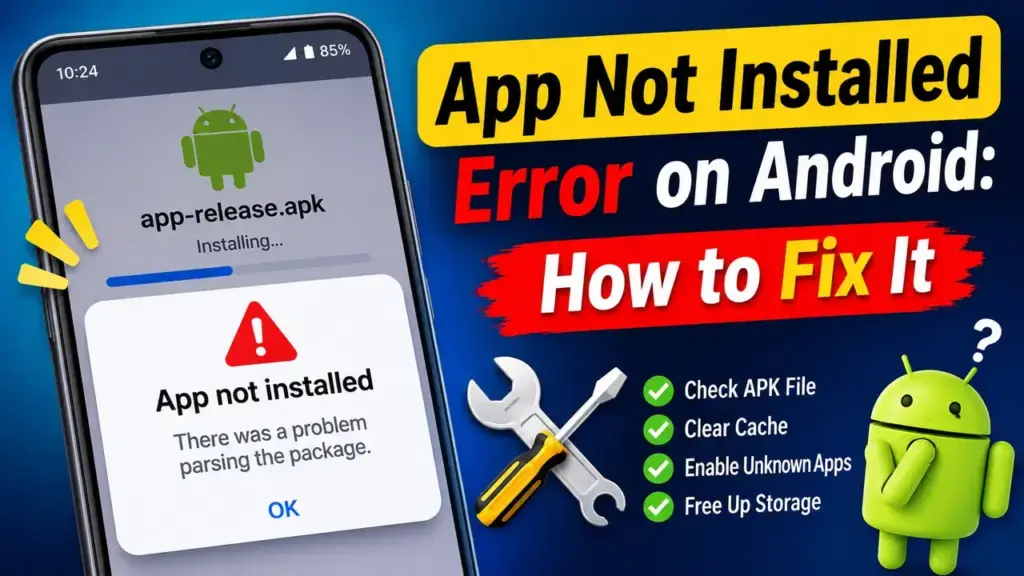
Quick answer: The app not installed error can mean low storage, an existing app conflict, a damaged APK, or an incompatible download. First, free some space, get a fresh APK from its official source, and check whether the app is already installed. These checks resolve many simple cases without weakening your phone’s security. Use the table below if Android gives a more specific message.
New to APKs? Read How to install an APK on Android guide. These steps cover Android 8–15; message wording and menus vary by phone brand and version.
Why does Android say “App not installed”?
Android checks the APK’s file structure, signature, compatibility, storage needs, and security rules. When a check fails, it may show a vague message instead of identifying the problem. A failed installation doesn’t prove an APK is malicious, but you should verify its source.
Try these fixes first (two-minute checklist)
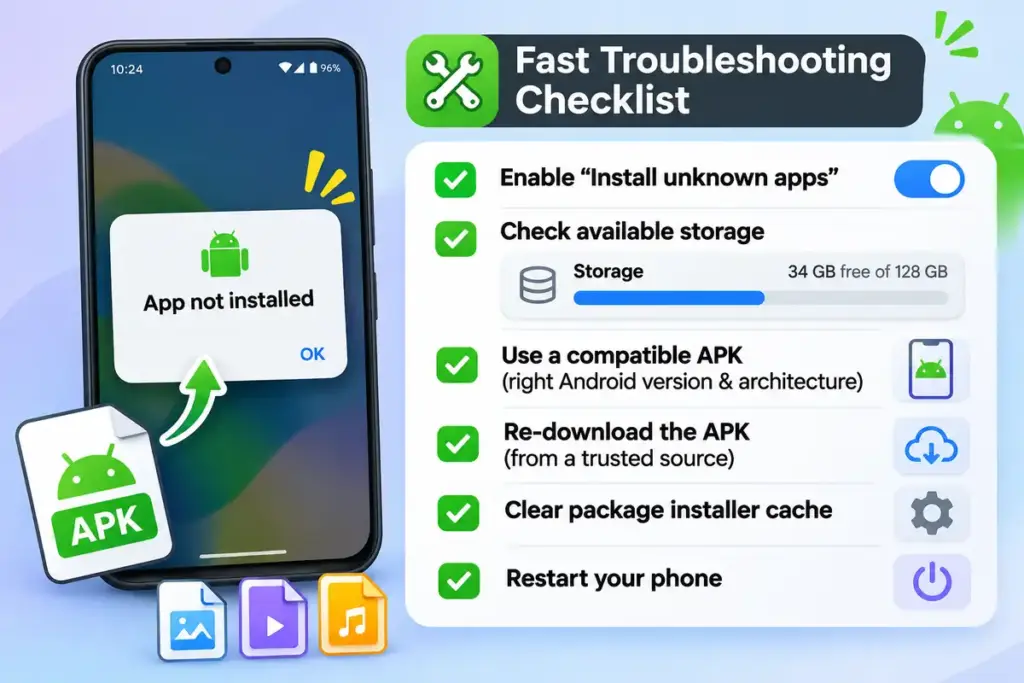
- Restart the phone and retry.
- Free internal space under Settings > Storage.
- Download a fresh APK from the official source.
- Search Settings > Apps for an existing copy.
- Under Settings > Apps > Special app access > Install unknown apps, check permission for the trusted browser or file manager opening the file. Search Settings for Install unknown apps if needed.
- For XAPK or APKS downloads, use the complete package instead of one extracted APK.
1. Free up storage space
What it looks like: The APK downloads, but installation fails on a nearly full phone. Android needs working space beyond the downloaded file size.
- Open Settings > Storage (search Storage if needed).
- Remove unwanted downloads or move backed-up photos off the phone.
- Empty app trash if necessary, then retry.
2. Remove an older or differently signed version
What it looks like: Android offers Update for an existing app, then fails. Updates generally need the same app identity and developer signing certificate (or valid key rotation). Android also blocks ordinary downgrades.
- Try updating through the original store or developer.
- Back up app data, downloads, and login recovery details.
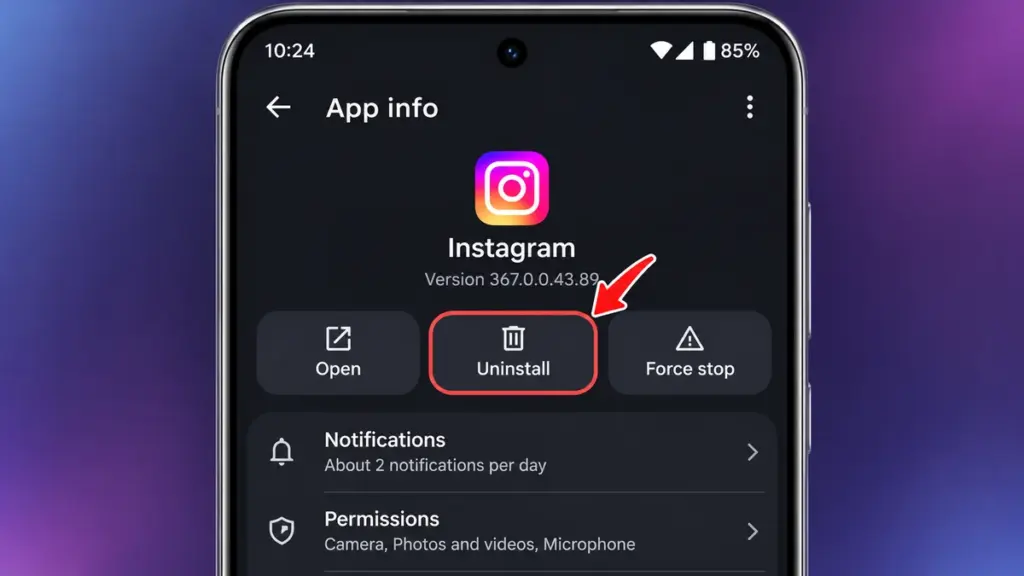
- Go to Settings > Apps > See all apps > [app] > Uninstall.
- Install the authentic replacement and restore data if supported.
Warning: Uninstalling can erase local progress, chats, and settings. Renaming the APK won’t fix a signature conflict.
3. Fix a package conflict
What it looks like: “App not installed as package conflicts with an existing package.” Android found an app identity, permission, or signing conflict.
- Search Settings > Apps, including work-profile or cloned copies.
- Back up data before removing a confirmed conflicting app.
- Retry with the developer’s authentic APK.
- If the conflict remains unclear, ask the developer; don’t remove unrelated system apps.
4. Download the APK again if the file is damaged
What it looks like: The download stopped early, the APK is unusually small, or one file repeatedly fails. An .apk filename doesn’t guarantee a valid file.
- Delete the file from Files > Downloads.
- Download again from the developer or authorized distributor.
- Compare file size with the source; verify a published checksum (file fingerprint) if available.
- Follow How to check if an APK is safe guide.
Avoid APKs forwarded through unknown messages, even if filenames match.
5. Fix an invalid package
What it looks like: “App not installed as package appears to be invalid.” The APK may be malformed, corrupted, or incorrectly signed; this message isn’t a precise diagnosis.
- Download an unmodified official APK.
- Confirm it’s standalone, not one part of a split package.
- Check device compatibility.
- If it still fails, tell the developer your phone model, Android version, and error.
Avoid sites offering to remove APK signatures; doing so can break trust and installation.
6. Fix the parsing package error
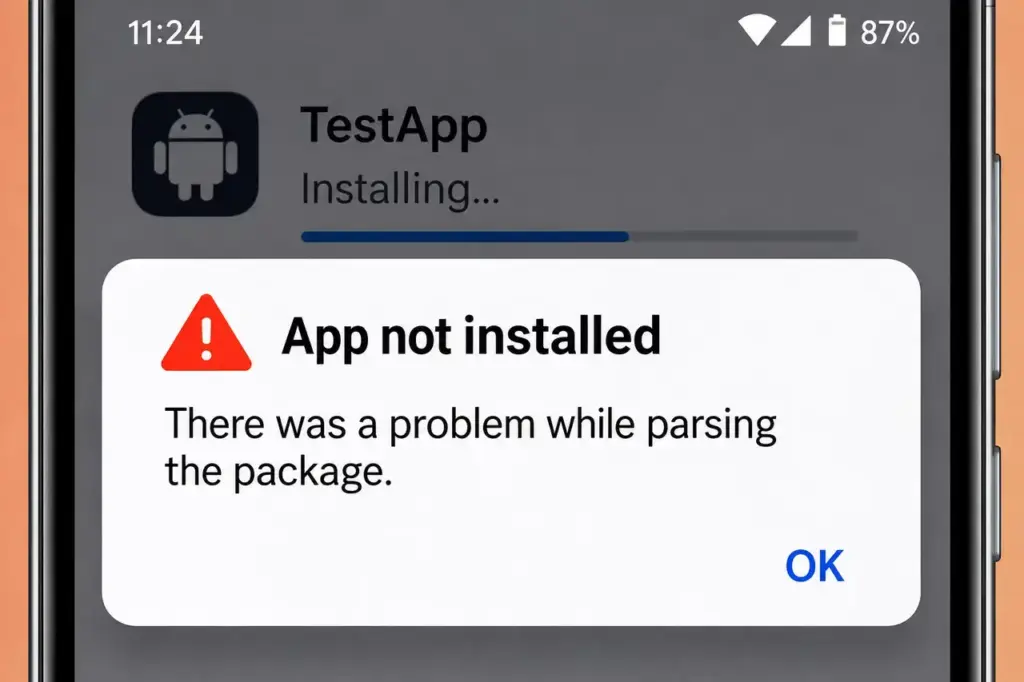
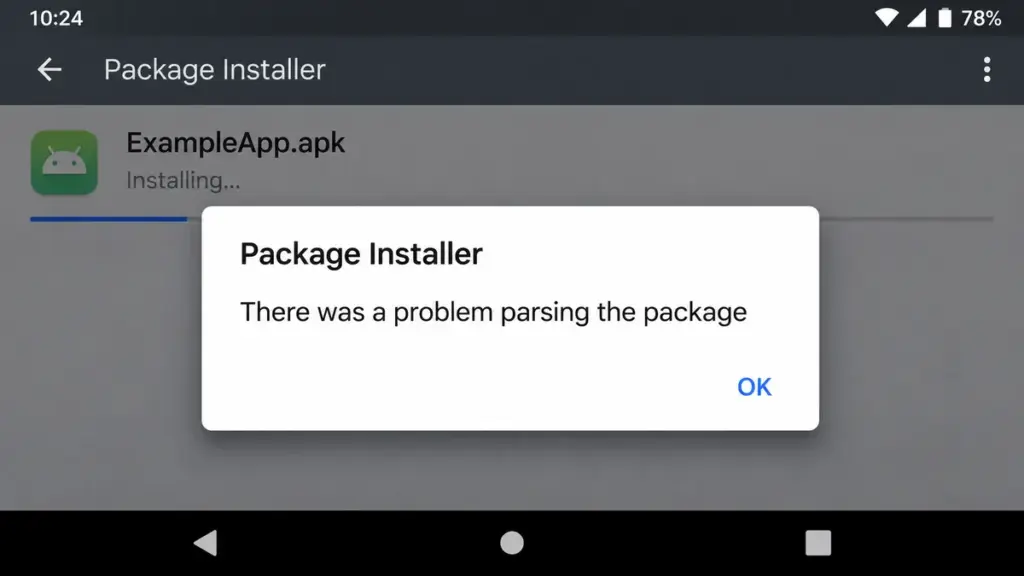
What it looks like: “There was a problem parsing the package.” Android can’t properly read the file, perhaps because it’s incomplete or unsupported.
- Download the APK again without extracting it.
- Compare Settings > About phone > Android version with the app’s requirements.
- Check the correct device variant.
- Ask the developer for a compatible release if necessary.
7. Check Android version and processor support
What it looks like: Only one app fails. Android rejects an APK if its declared minimum Android version (minSdk) is newer than the system on your phone. Processor builds also differ: arm64-v8a means 64-bit ARM; armeabi-v7a means 32-bit ARM. Choose a build your phone supports.
- Check Settings > About phone > Android version.
- Read the developer’s compatibility notes.
- Select a matching or universal APK, if offered.
Older-app warning: Android 14 blocks new installs targeting API levels below 23; Android 15 raises that threshold to 24. This security rule differs from minSdk, so some very old APKs fail even on new phones.
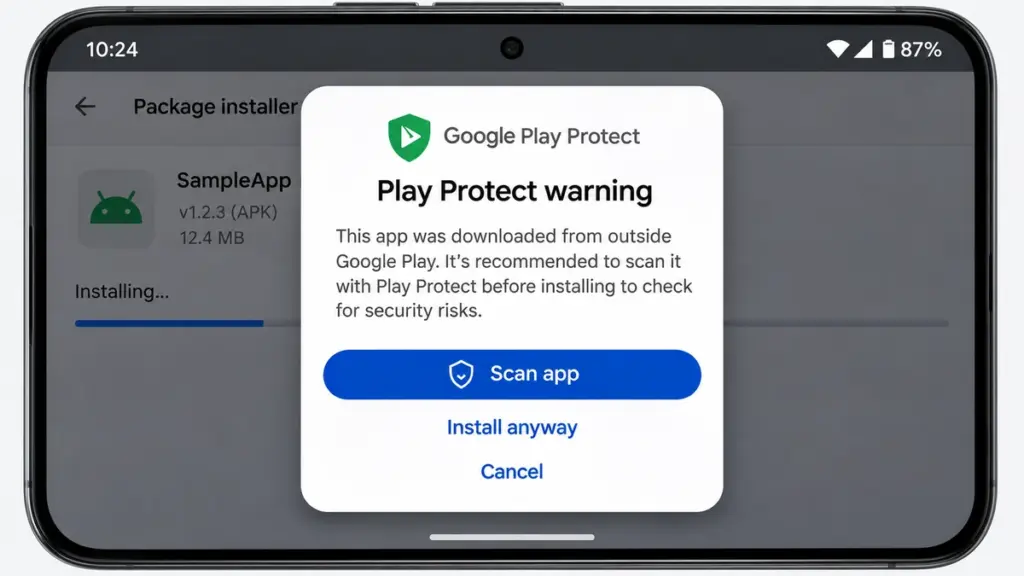
8. Check Google Play Protect
What it looks like: Play Protect requests a scan or warns that an app might be harmful. It can block risky apps from outside Google Play.
- Open Play Store > Profile picture > Play Protect.
- If asked, tap Scan app and read the results.
- Check the publisher, website, permissions, and file using [LINK: How to check if an APK is safe guide] and TCL’s security tips.
- Continue only if the source is verified, the scan finds no known threat, and a legitimate install option is provided. If flagged as harmful or blocked, stop and ask the developer.
No scan guarantees safety. Never permanently disable Play Protect. Google explains the warnings here.
9. Install split APK or XAPK files correctly
What it looks like: You received XAPK, APKS, or several APKs, then opened just one. Split apps may require a base APK plus device-specific parts installed together. Use the original store or a trustworthy installer for the complete package; see our guide to installing XAPK files on Android. Avoid unnecessary permissions.
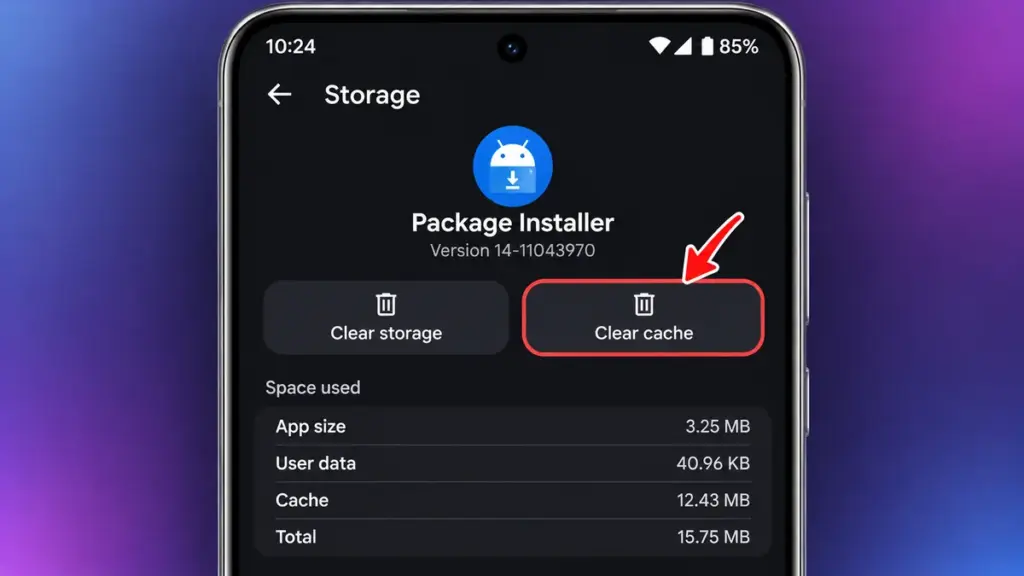
10. Clear the Package Installer cache
What it looks like: Multiple valid APKs fail or Package Installer keeps stopping. Clearing cache may resolve a glitch, not a bad APK.
- Open Settings > Apps > See all apps.
- Enable Show system apps if available; select Package Installer.
- Open Storage & cache or Storage usage; tap Clear cache.
- Restart. If necessary, use Clear storage/data for Package Installer only; it may reset installer preferences.
If the system app is hidden or restricted, skip this fix.
11. Try another file manager or restart
What it looks like: A browser or file manager fails to launch a valid install correctly.
- Restart and open Files or the built-in file manager.
- Open the APK from Downloads.
- If prompted, allow Install unknown apps only for that trusted app.
- Revoke access afterward if unnecessary.
Brand-specific checks
Xiaomi, Redmi, POCO (MIUI/HyperOS): Expect possible security scans or unknown-source warnings. Search Install unknown apps; one documented route is Security & privacy > More security & privacy > Special permissions > Install unknown apps. Read security results rather than overriding them.
Samsung Galaxy: Auto Blocker may stop unauthorized installations. Check Settings > Security and privacy > Auto Blocker. After verifying the app’s safety, Samsung allows temporarily disabling it for installation; re-enable it immediately. Never dismiss malware warnings. See Samsung’s guide.
Vivo, Oppo, Realme: Extra security or source-permission prompts may appear. Realme’s documented paths vary; search for Install unknown apps or Unknown source installations, and authorize only your trusted browser or file manager.
When nothing works
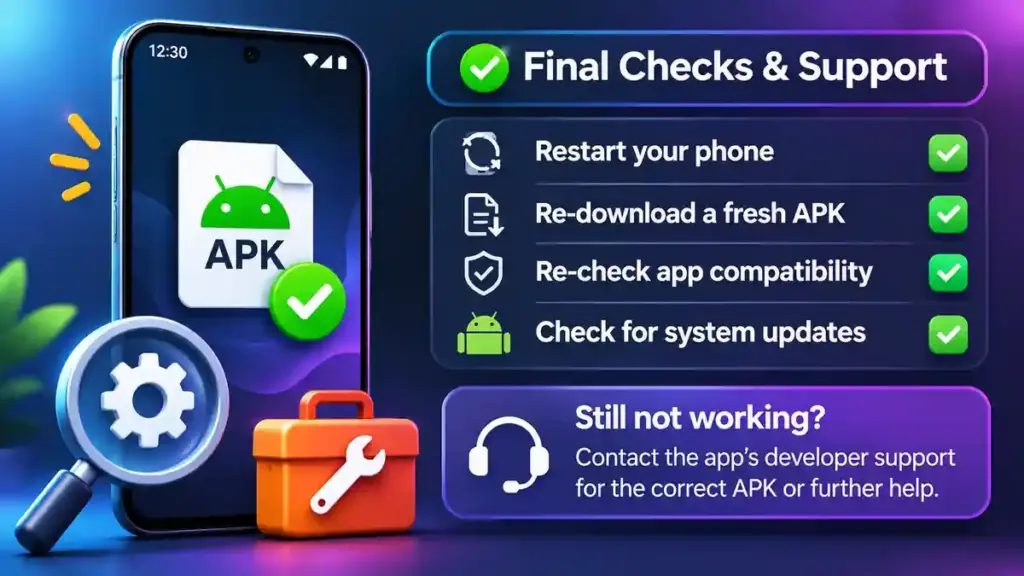
If only one APK fails, check its official page for Android and CPU requirements. A previous supported release from an official archive might work, but older builds can be insecure or blocked on Android 14–15.
If every APK fails, check permissions and work or parental restrictions. Contact the developer or phone maker with the exact error, model, Android version, and download source. Avoid factory resets for one failed APK.
Frequently asked questions
Why does my phone say “App not installed” when I have enough storage?
An existing app conflict, corrupt file, incompatible Android or CPU version, missing split files, or security block can cause it. Check the installed apps first.
Can I fix “App not installed as package conflicts with an existing package” without uninstalling?
Sometimes. A correctly signed update from the original developer may work. If signatures differ, back up data before removing the existing app.
Does “package appears to be invalid” mean the APK has a virus?
No. It may be damaged, incomplete, or incorrectly signed. Still verify the publisher and source.
Why does an APK work on one Android phone but not another?
Phones can differ in Android version, CPU support, or security policies. Download the developer-supported variant.
Should I disable Google Play Protect to install an APK?
No. Investigate any warning. If flagged as harmful, find a trustworthy alternative or contact the developer.
Can clearing Package Installer data remove my installed apps?
No, but it can reset installer-related settings. Try Clear cache first and avoid other system apps.
Conclusion: Fix the app not installed error safely
The app not installed error is a symptom, not a diagnosis. Check free space, existing apps, and a fresh compatible APK before changing advanced settings. Keep Play Protect enabled and avoid modified files. Next step: match your exact error to the table and try its fix.