How to Install APK on Android
How to Install APK on Android
Quick answer: To install an APK on Android, download the APK file, tap it, and when Android asks, allow your browser or file manager to Install unknown apps. Then tap Install and Open. Once you’re done, turn that permission off again.
That’s the short version of how to install APK on Android. Below, I’ll walk you through each step, show where the setting lives on Samsung, Xiaomi, Vivo, Oppo, Realme, OnePlus and Motorola phones, and explain what to do when something goes wrong.
What is an APK file?
An APK (Android Package) is the file format Android uses to install apps. When you install an app from the Play Store, Android downloads and installs an APK for you in the background.
Installing an APK yourself is often called “sideloading.” People do it to get an app that isn’t available in their region, to install an app directly from the developer’s website, or to roll an app back to an earlier version.
Before you install: three quick checks
1. Check the source
This matters more than any setting. An APK can contain anything its maker puts in it, so only download from the app’s official website or a source you trust.
If the official app is on the Play Store, installing it from there is usually the safer choice.
2. Make sure you have enough storage
You need free space for the APK file itself plus the installed app, which is usually larger. Check under Settings > Storage (on some phones, Settings > Battery and device care > Storage or Settings > About phone > Storage).
3. Check your Android version
Some apps only run on newer versions of Android. You’ll find your version under Settings > About phone > Android version (on some brands, inside Software information). If the developer lists a minimum Android version, compare it with yours before downloading.
How to install APK on Android: step by step
These steps work on Android 8 and newer. Since Android 8, permission to install apps is given per app, so you allow only the specific browser or file manager you use, not the whole phone.
Step 1: Download the APK file
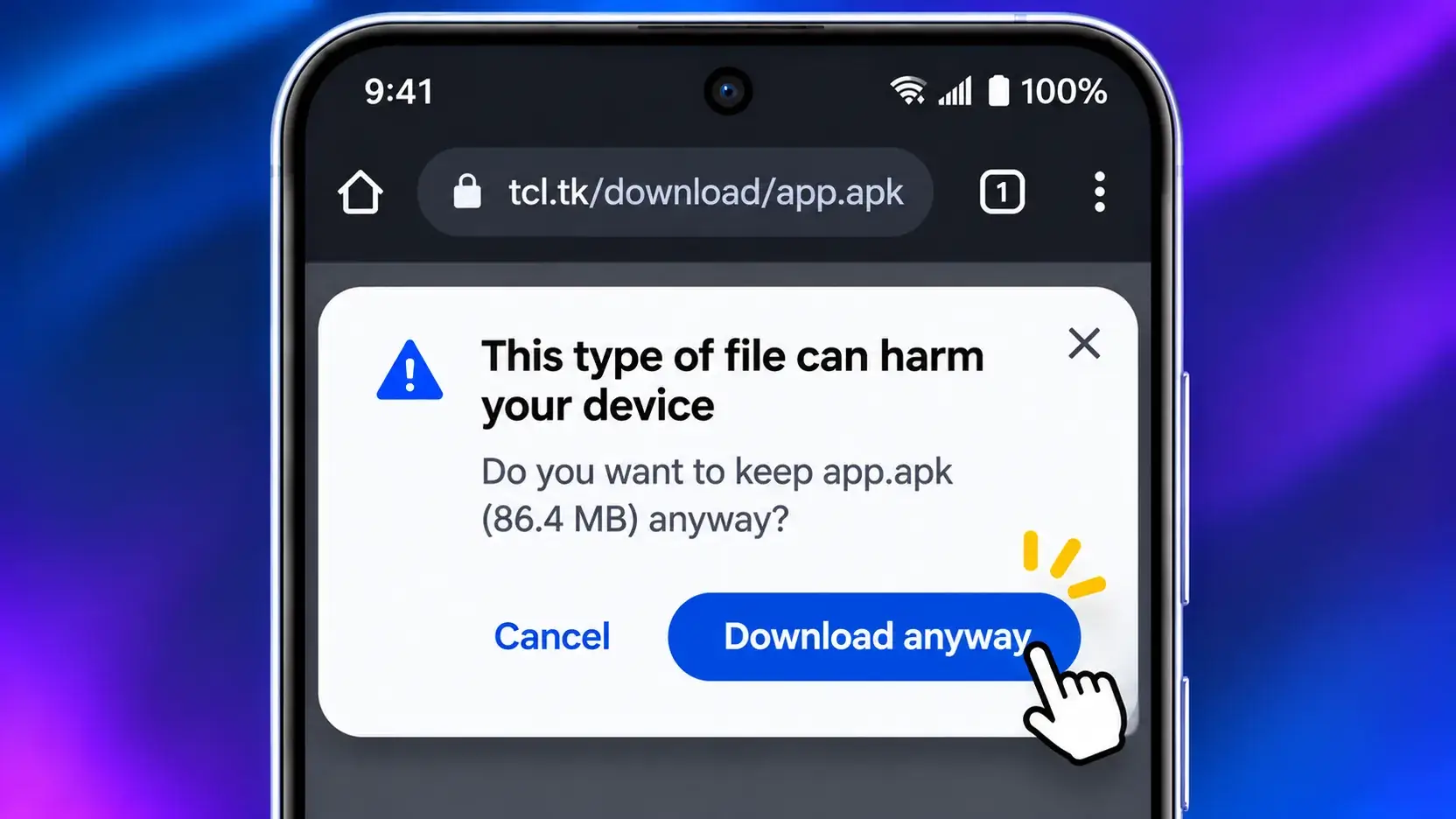
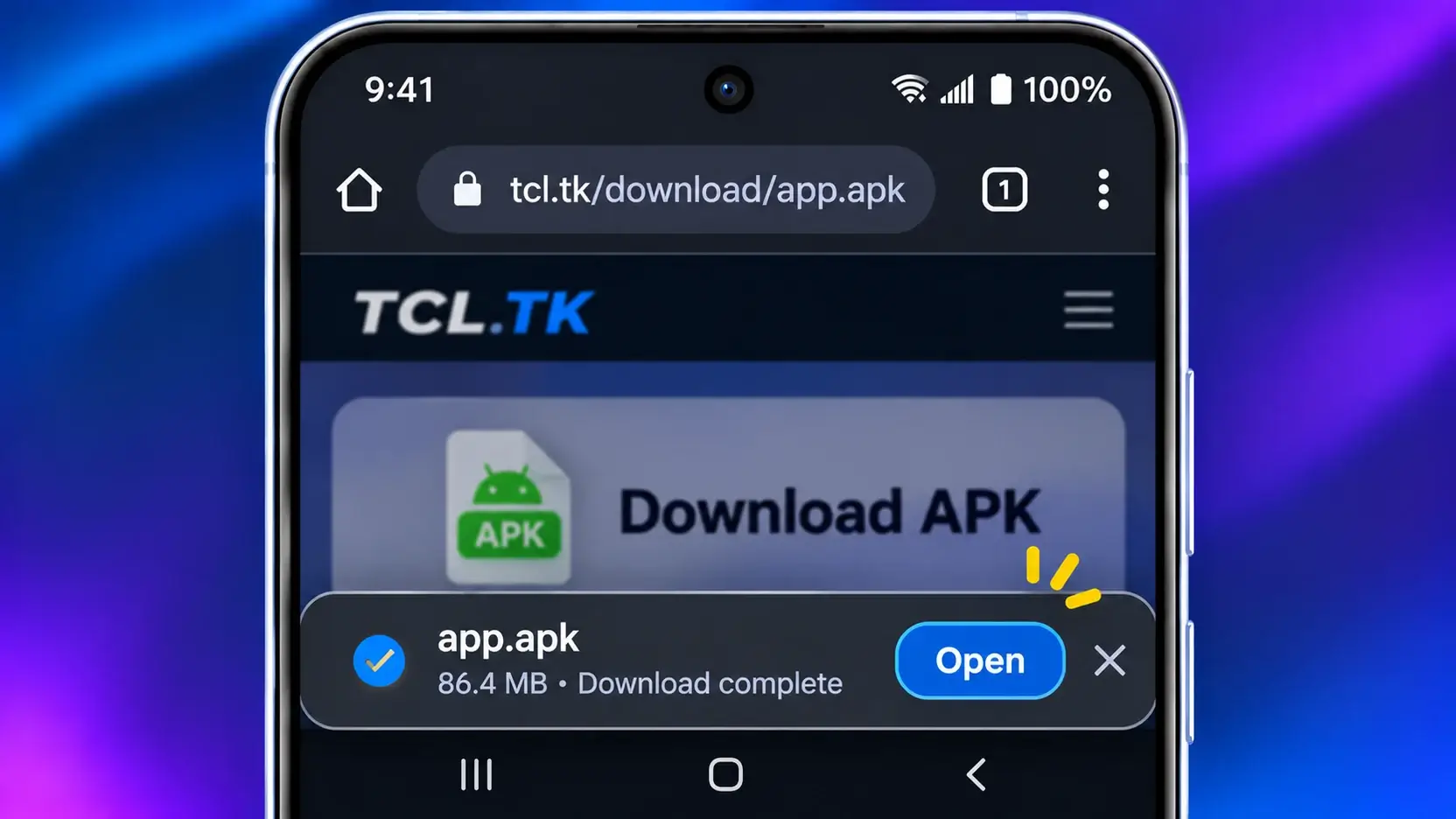
Open the download page in your browser (for example, Chrome) and tap the download link. Your browser may warn that “this type of file can harm your device.” If you trust the source, tap Download anyway.
Step 2: Open the APK
When the download finishes, tap Open in the notification or the bar at the bottom of Chrome. You can also open it later from your Downloads folder (more on that below).
Step 3: Allow “Install unknown apps” for that app
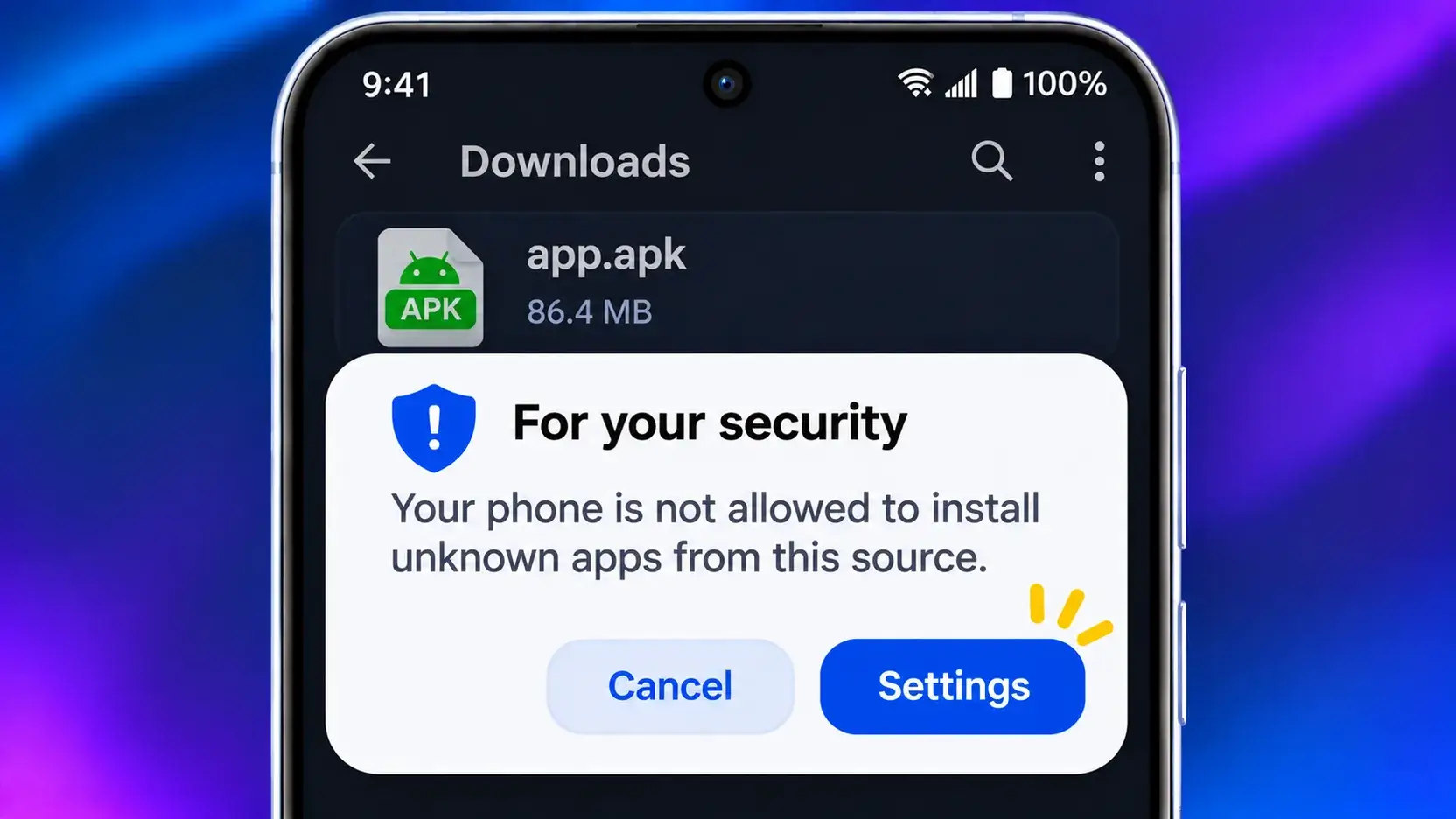
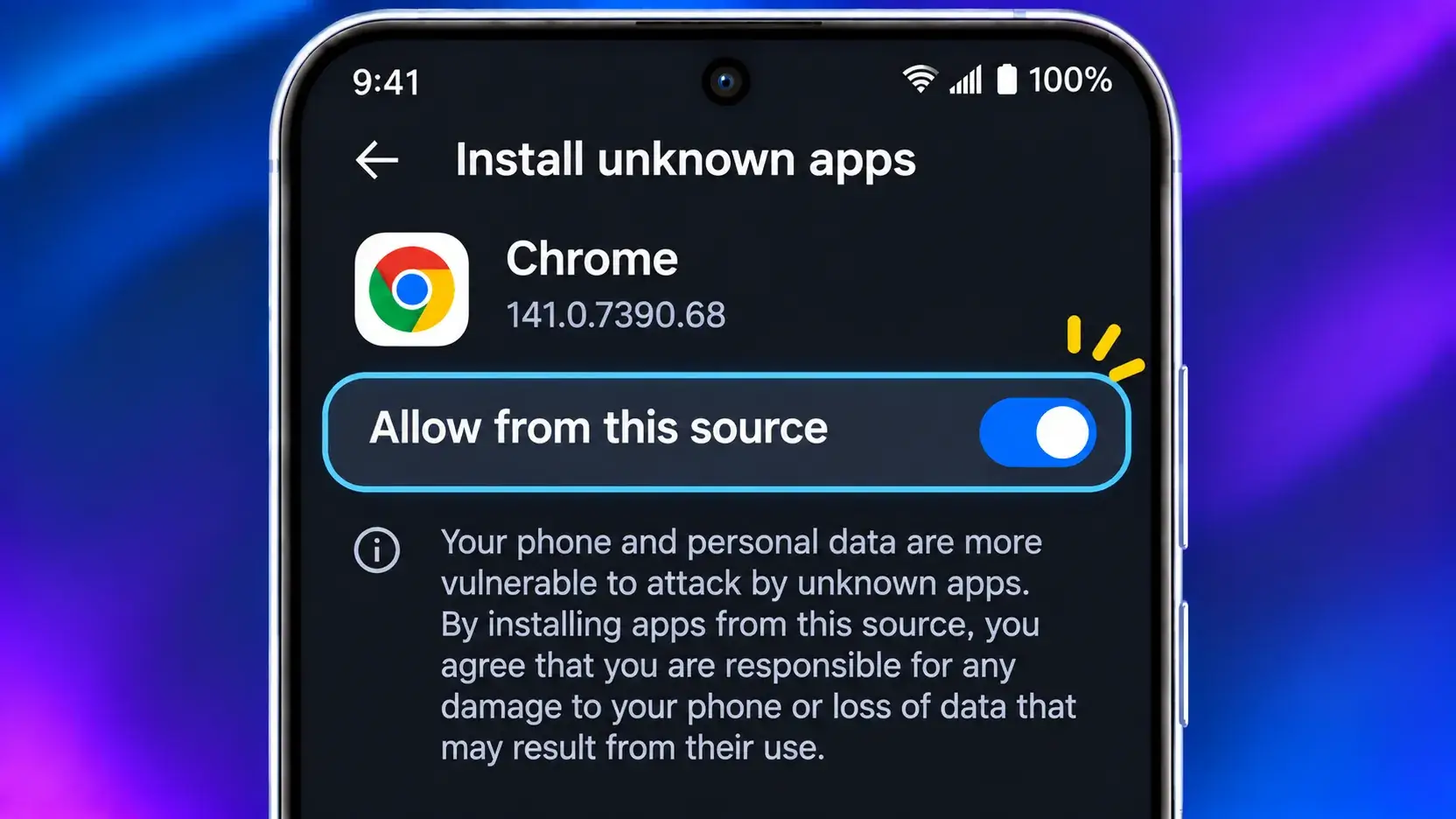
The first time you do this, Android will show a message that your phone isn’t allowed to install unknown apps from this source. Tap Settings on that message, then turn on Allow from this source.
This is the easiest way to change the setting, because Android takes you straight to the right toggle for the app you’re using.
Step 4: Install the app
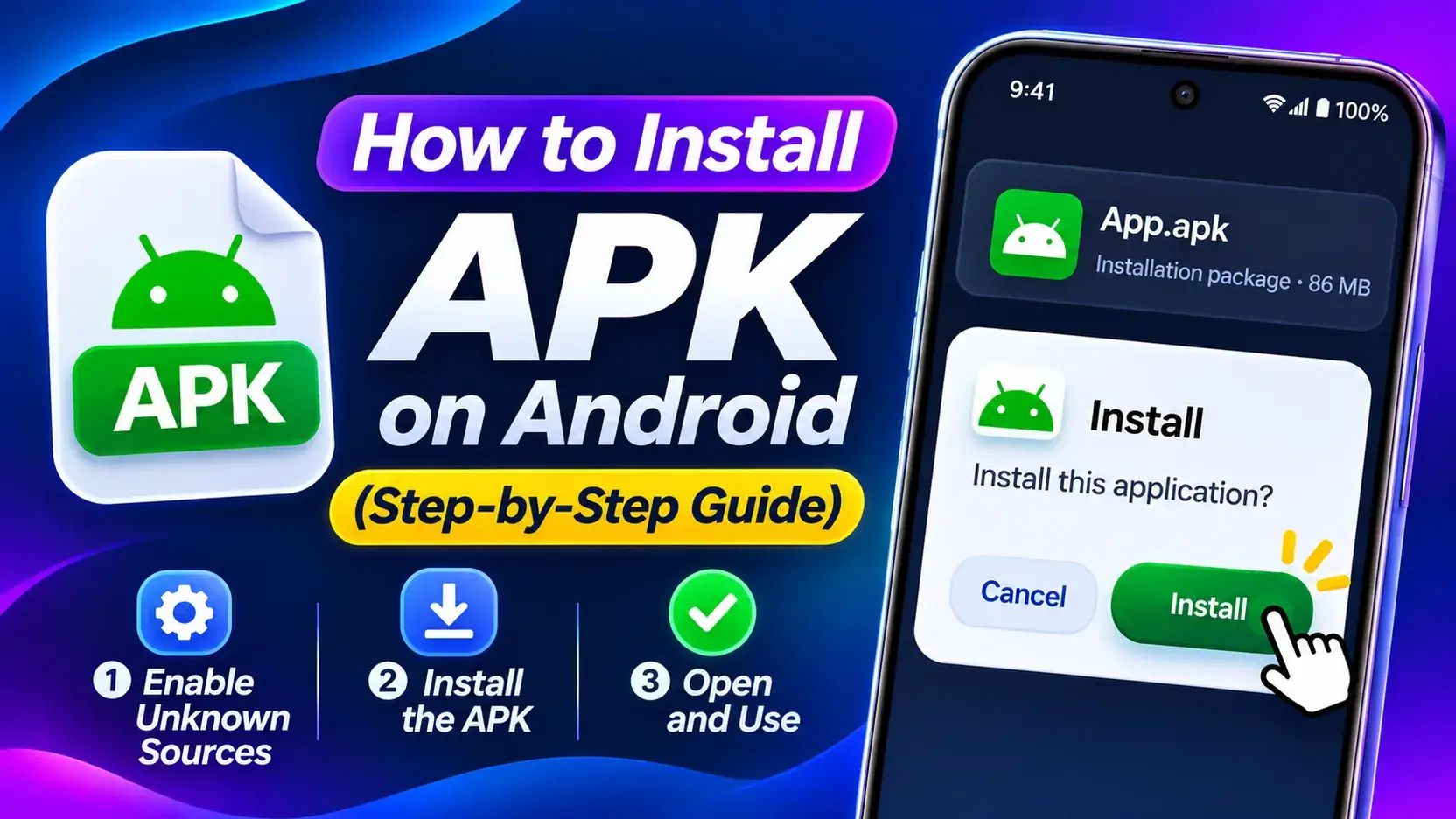
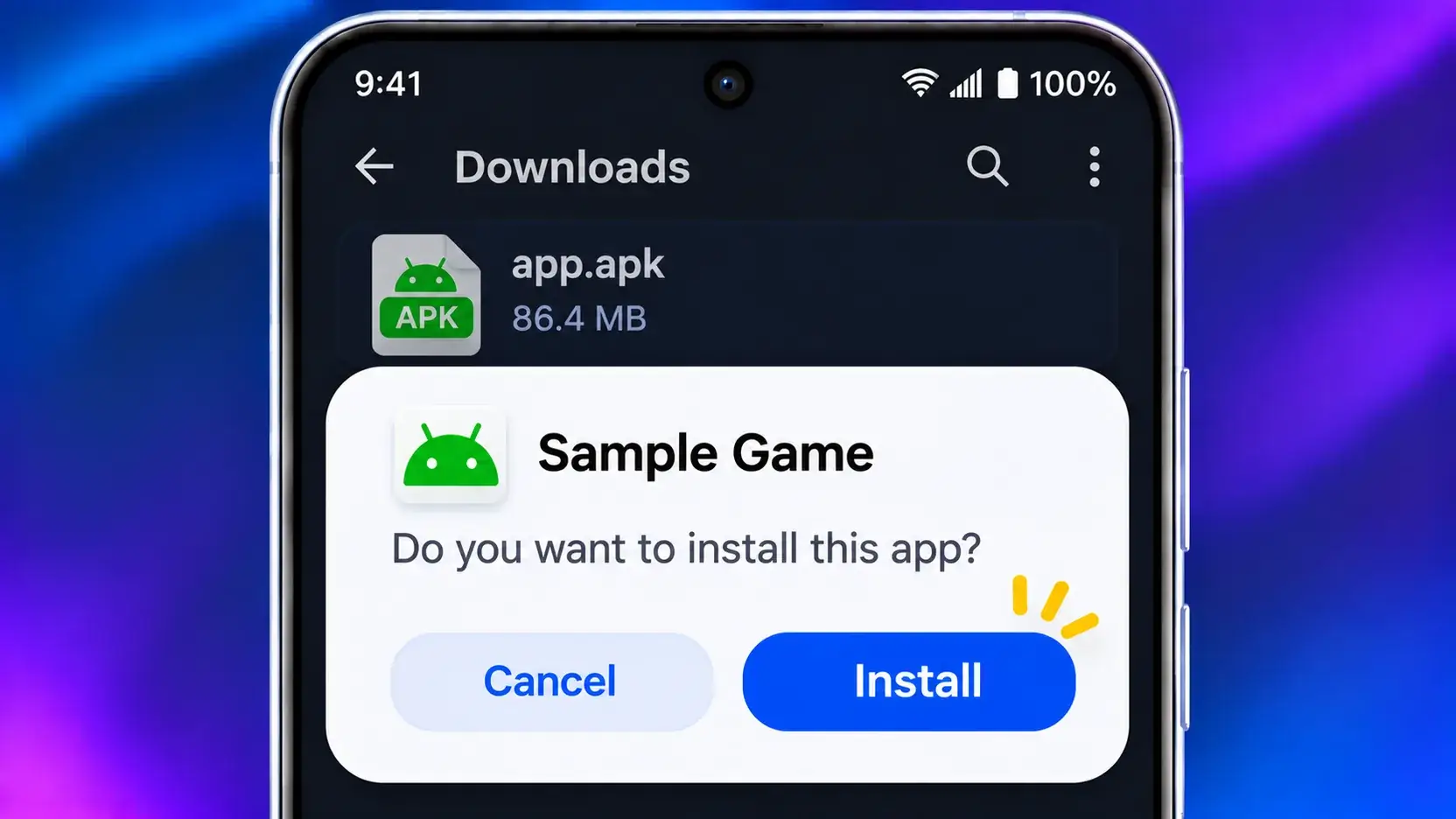
Press the back button to return to the installer. Android shows the app’s name and asks if you want to install it. Tap Install and wait a few seconds.
Step 5: Open the app
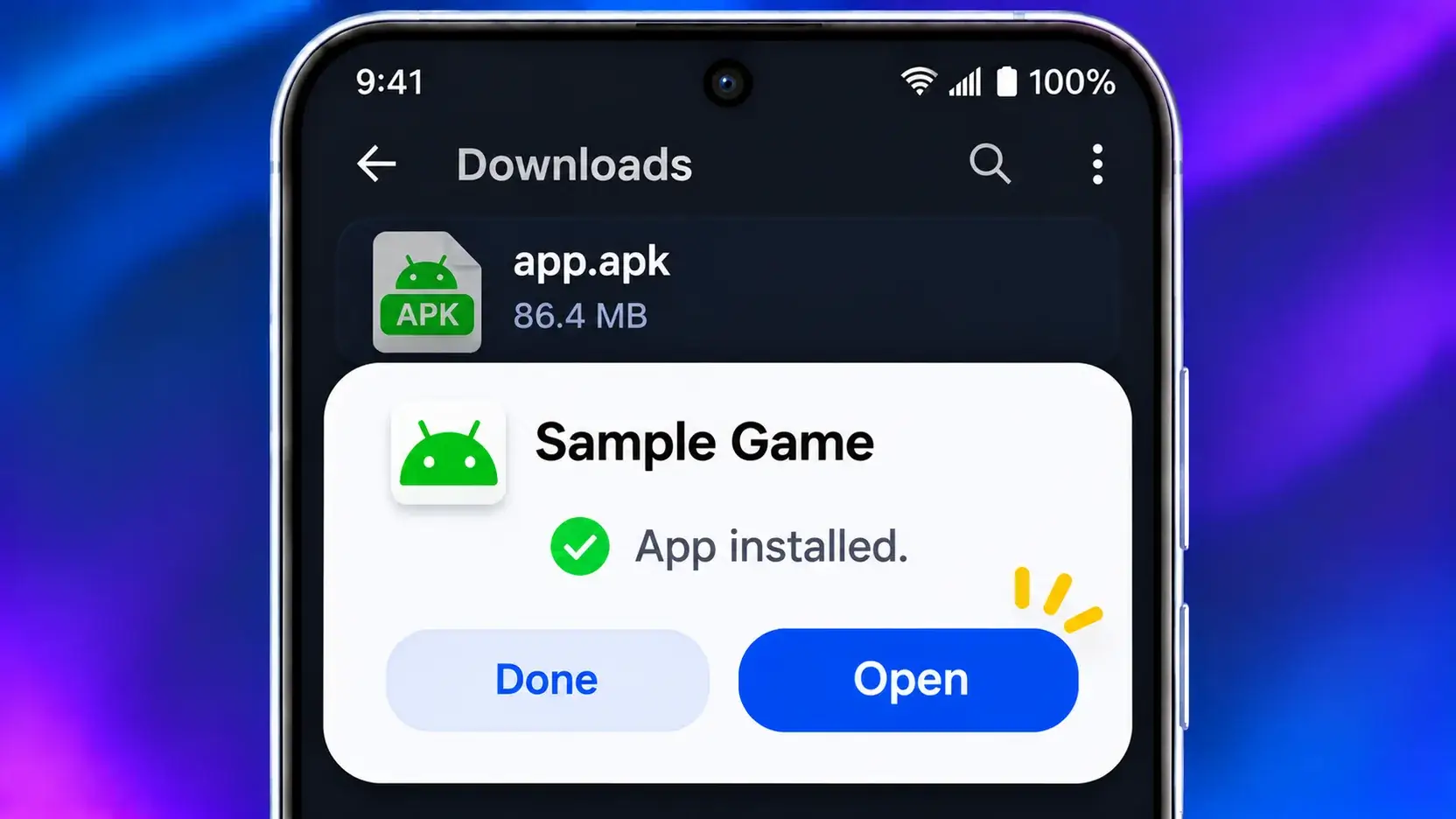
When you see App installed, tap Open, or tap Done and find the new icon in your app drawer.
Where to find “Install unknown apps” on each brand
If you missed the prompt, or want to turn the permission on or off later, you can find it in Settings. Menu names change slightly between software versions, so if a path below doesn’t match your phone, open Settings, tap the search bar and type unknown apps.
Samsung (One UI)
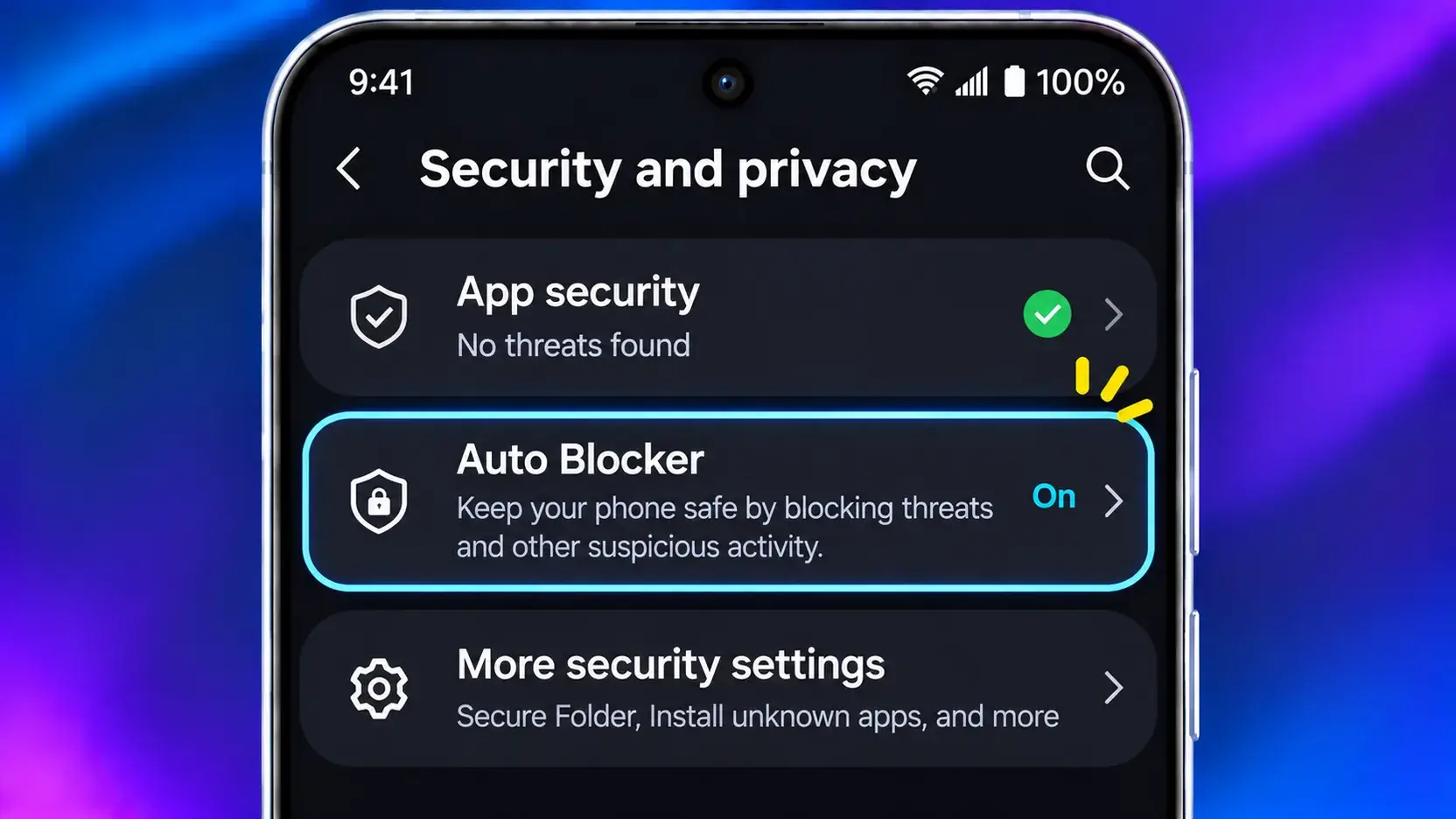
On most recent Samsung phones: Settings > Security and privacy > More security settings > Install unknown apps. On older versions, look under Settings > Apps > ⋮ (three dots) > Special access > Install unknown apps.
Newer One UI versions also have Auto Blocker (under Settings > Security and privacy). When it’s on, it blocks apps from unauthorised sources, so you’ll need to turn it off to install an APK. Turn it back on afterwards.
Xiaomi, Redmi and POCO (HyperOS / MIUI)
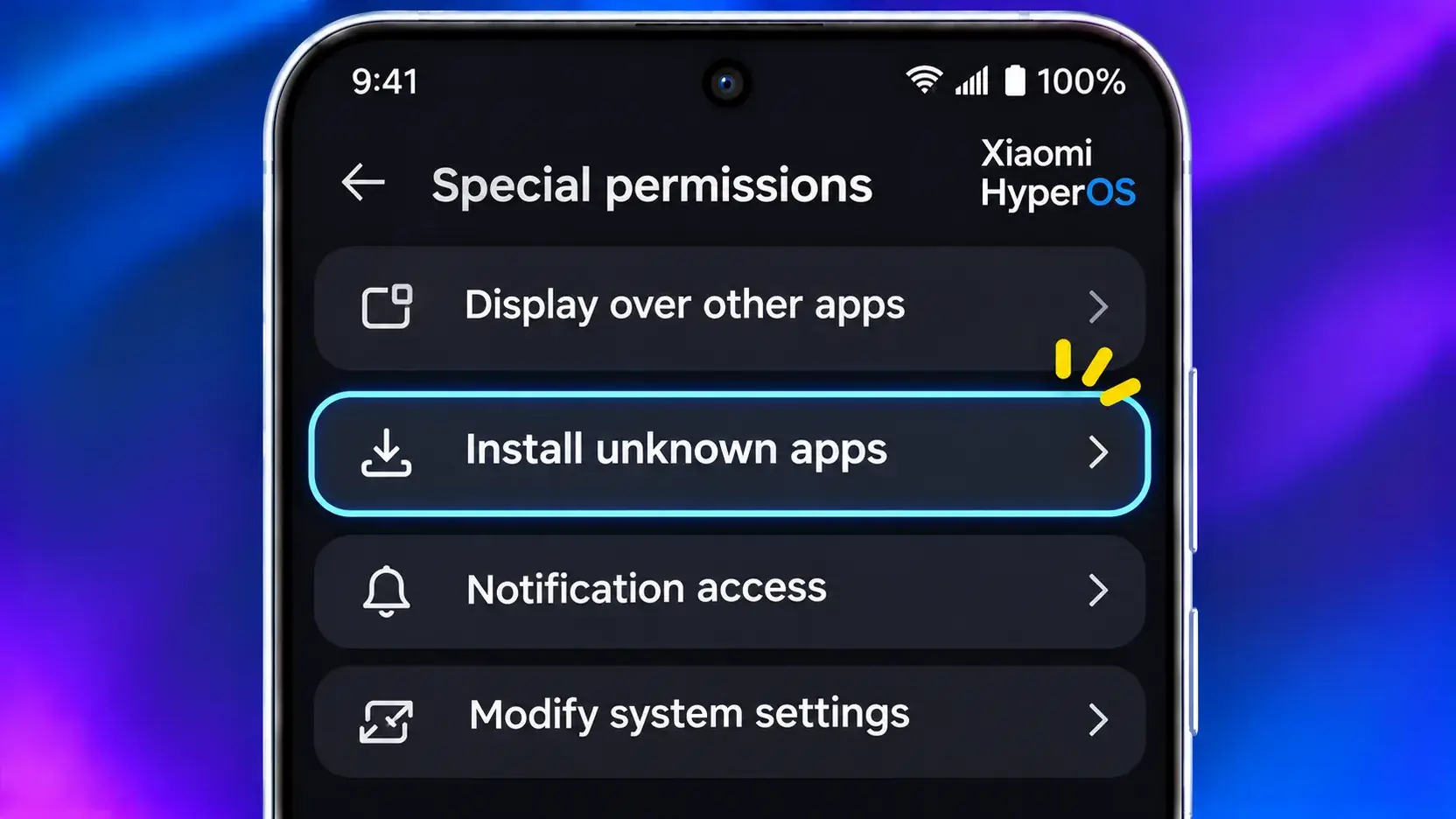
Usually Settings > Privacy protection (or Protect privacy) > Special permissions > Install unknown apps. On some versions it’s under Settings > Apps > Manage apps > Special app access.
Xiaomi’s installer may also run its own security scan before installing. Let it finish, then tap Install if you trust the app.
Vivo (Funtouch OS / OriginOS)
Look under Settings > Security & privacy (or Security) > Install unknown apps. On some versions it’s under Settings > Apps > Special app access. If you can’t find it, search unknown apps.
Oppo and Realme (ColorOS / Realme UI)
Typically Settings > Apps > Special app access > Install unknown apps. Some versions place it under Settings > Privacy or Settings > Password & security > System security.
OnePlus (OxygenOS)
Go to Settings > Apps > Special app access > Install unknown apps. Recent OxygenOS versions are built on ColorOS, so the paths are similar to Oppo’s.
Stock Android, Pixel and Motorola
On Android 12 and newer: Settings > Apps > Special app access > Install unknown apps. On Android 8 to 11: Settings > Apps & notifications > Advanced > Special app access > Install unknown apps.
Installing from a file manager vs from the browser
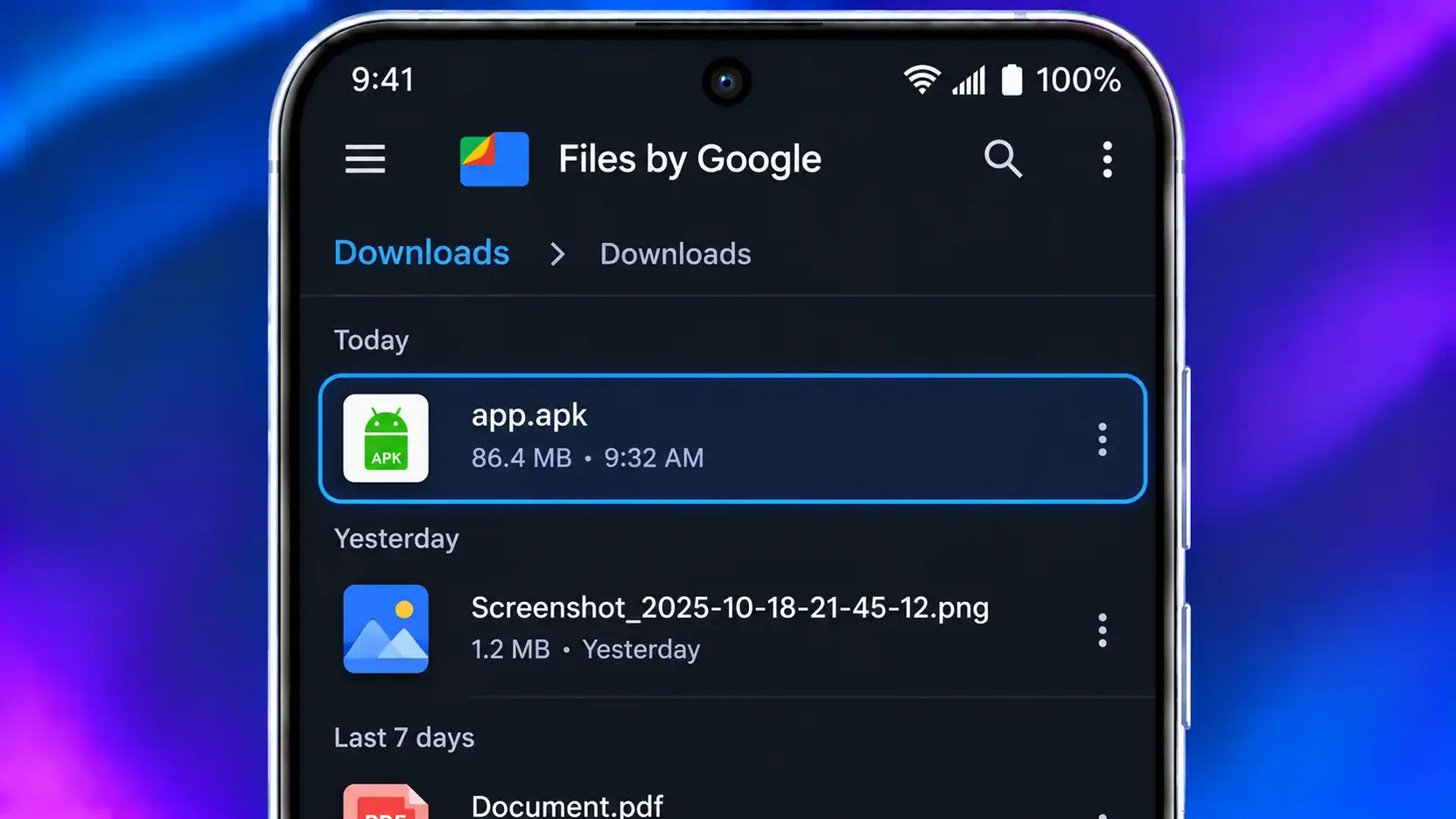
You don’t have to install straight from the browser. You can also open the APK later from a file manager such as Files by Google, Samsung’s My Files, or your phone’s built-in File Manager.
- From the browser: quickest. Tap Open right after the download. You only need to allow your browser.
- From a file manager: handy if you downloaded the file earlier, received it from another device, or copied it from a computer. Open the Downloads folder, tap the APK, and allow the file manager (not the browser) to install unknown apps.
Whichever app you use to open the APK is the one that needs the permission. That’s why you might see the prompt again even after allowing Chrome.
How to update an app you installed from an APK
Apps installed from an APK don’t always update through the Play Store. To update, download the newer APK from the same source and install it over the existing app. Your data stays in place.
Two things must be true for this to work:
- The new APK must be signed by the same developer as the installed one. If the signatures don’t match, Android refuses and you’ll see “App not installed.”
- The new APK must be the same version or newer. Android won’t install an older version over a newer one without uninstalling first, which deletes the app’s data.
Common problems and quick fixes
- “App not installed”: The APK may be corrupted, made for a newer Android version, or signed differently from the version already on your phone. Re-download it from the official source, or uninstall the old version first (this deletes its data). Android 14 and newer also block some very old apps built for outdated Android versions.
- Not enough storage: Clear space under Settings > Storage, delete the downloaded APKs you no longer need, then try again.
- Play Protect warning: Google Play Protect scans sideloaded apps and may warn you or block the install. Take the warning seriously. If you’re not completely sure where the file came from, don’t install it. In India, Play Protect may also block sideloaded apps that request sensitive permissions such as reading SMS or notifications.
- The file won’t open: Make sure the download finished and the file ends in .apk. Try opening it from a file manager instead of the browser.
After installing: turn the permission back off
Once the app is installed, go back to Install unknown apps, tap the browser or file manager you used, and turn Allow from this source off.
This stops a malicious website or file from quietly installing something later. Your installed app keeps working normally. If you turned off Samsung’s Auto Blocker, switch it back on too.
Safety checklist
- Download only from the developer’s official site or a source you trust.
- Check the permissions an app asks for. A torch app has no reason to read your SMS or contacts.
- Avoid modified, “premium unlocked” or cracked APKs. They’re a common way to spread malware.
- Keep Google Play Protect turned on (Play Store > profile icon > Play Protect).
- Turn Install unknown apps off again after each install.
For more ways to keep your phone safe, read our Android security tips.
Conclusion
Learning how to install APK on Android takes a minute: download the file, allow your browser or file manager to install unknown apps, tap Install, then switch the permission back off. The steps are the same across brands; only the menu names change. The most important choice is where the APK comes from. When you’re ready, browse our Android apps collection to find your next app.
FAQ
Is it safe to install APK files?
It depends on the source. APKs from the developer’s official site or a trusted source are generally fine. Files from unknown sites can contain malware.
Why does my phone say “App not installed”?
The file may be damaged, built for a newer Android version, or signed differently from the version already installed. Re-download it, or uninstall the old version first.
Will apps installed from an APK update automatically?
Not always. Usually you need to install the newer APK from the same source over the existing app.
Do I need to root my phone to install APKs?
No. Any Android phone can install APK files once you allow Install unknown apps for the app you’re using to open them.
Should I turn off “Install unknown apps” afterwards?
Yes. Turning it off doesn’t affect apps you’ve already installed, and it keeps other apps from installing files without you noticing.
Does installing an APK delete my existing app data?
No, if you’re installing a newer version over the same app. Data is only lost if you uninstall the app first.