There Was a Problem Parsing the Package: 7 Fixes
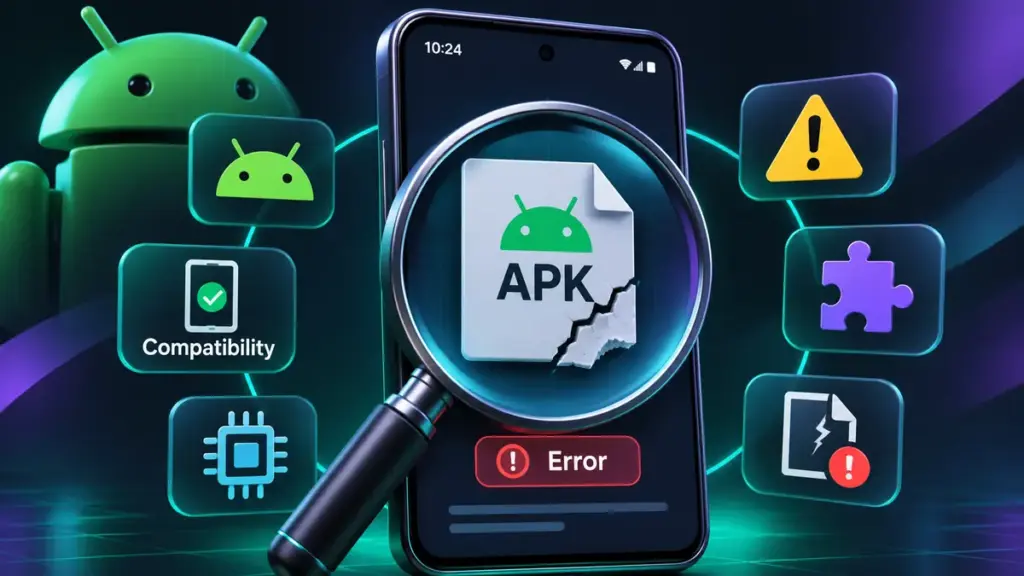
Quick answer: The error “There was a problem parsing the package” means Android couldn’t properly read or accept the APK file you’re trying to install. Two things worth checking first are an incomplete download and a file that isn’t actually a valid, standalone APK. The fastest fix is to delete the downloaded file, download a fresh copy from the developer’s official website, and open it from your Downloads folder. If that doesn’t work, check the app’s compatibility with your phone.
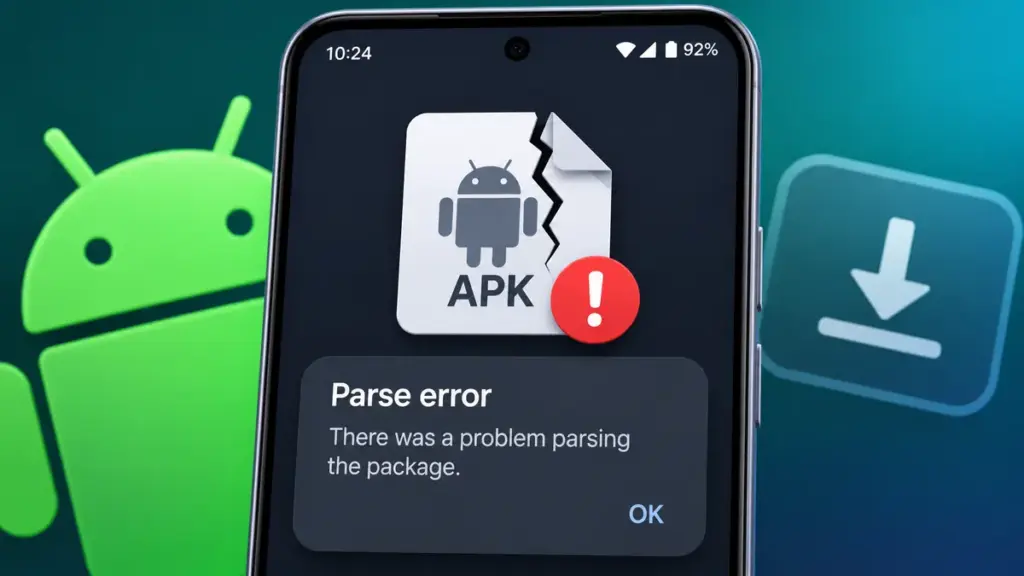
What Does “There Was a Problem Parsing the Package” Mean?
An APK (Android Package) contains the files Android needs to install an application.
When you tap an APK, Android’s Package Installer examines its contents before allowing installation.
If the installer cannot read the file correctly, you may see:
- “Parse error: There was a problem parsing the package.”
- “There was a problem while parsing the package.”
- “Can’t parse package.”
The exact wording varies between Android versions, manufacturers, and installer apps. Some phones display a different installation failure for the same underlying problem.
A parse error APK message doesn’t automatically mean your phone is damaged or the application is malicious. It means the installation process couldn’t continue with that particular file. Start with Fix 2 if you’re unsure. Re-downloading a valid APK is usually easier than changing system settings.
1. The App Requires a Newer Android Version
Every Android application can specify a minimum supported Android version, called its minimum SDK version.
If your phone runs an older version than the app requires, Android won’t install it.
For example, an application requiring Android 13 cannot install on a phone running Android 11.
This incompatibility may produce a separate installation message rather than the exact parsing error, but it is worth checking.
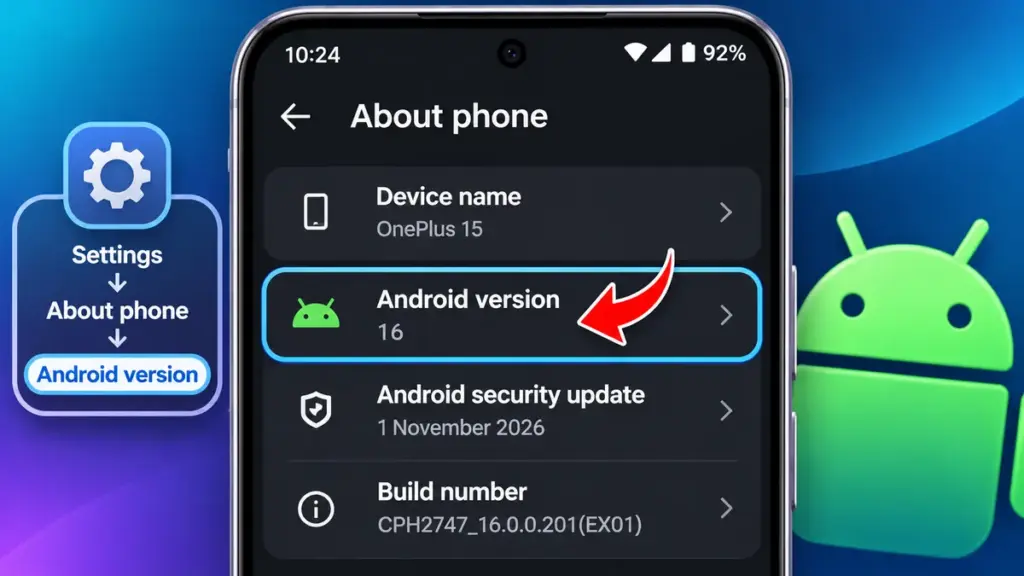
How to check your Android version
- Open Settings.
- Tap About phone or About device.
- Find Android version, sometimes under Software information.
- Note the version displayed.
If you cannot find it, search Settings for Android version.
How to fix it
- Open the app developer’s official website or Play Store listing.
- Check its minimum Android requirement.
- Compare that requirement with your phone’s Android version.
- Open Settings > System > Software update (or search Software update) and check for updates.
- If no suitable update exists, look for an older version that officially supports your device.
Only download older releases from the developer or a trustworthy source. An older APK can have unpatched security problems.
2. The APK Download Is Incomplete or Corrupted
An interrupted download can leave you with a file that looks normal but is missing important data.
This may happen because the internet connection dropped, the download was interrupted, or the file became damaged during transfer.
How to fix it
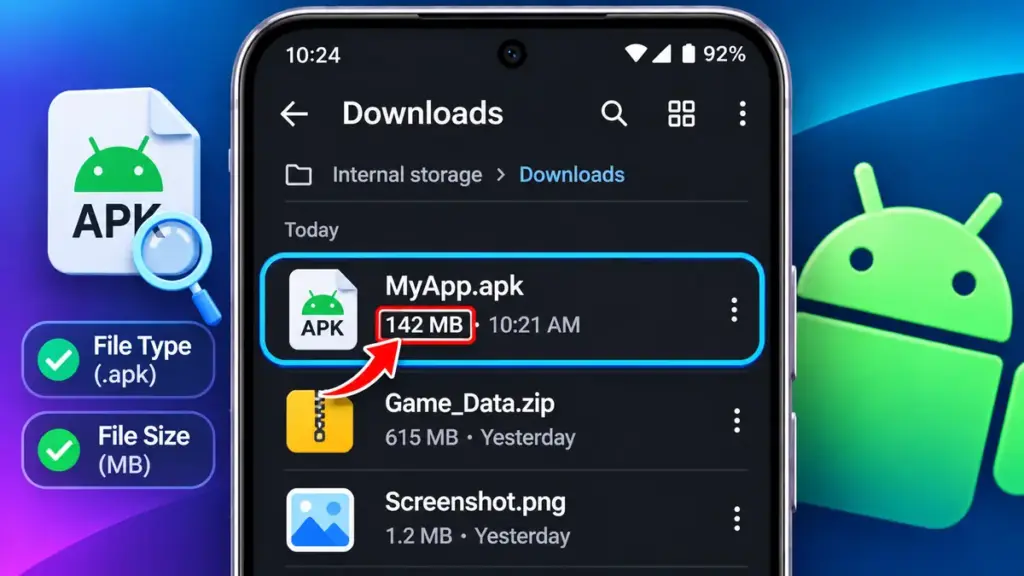
- Open your phone’s Files, My Files, or File Manager app.
- Navigate to Internal storage > Download or Downloads.
- Find the APK and check its file size under Details or Info.
- Compare its size with the developer’s published download size, if available.
- Delete the failed download.
- Download it again using a stable Wi-Fi connection and your regular browser.
Wait until the browser reports that the download has finished before opening the file.
If you used a download manager that divides downloads into multiple parts, try downloading directly through your browser instead.
A different download size is not always proof of corruption because developers may distribute device-specific files. If the publisher provides a SHA-256 checksum, matching it is a stronger way to verify the download.
Before retrying an unfamiliar file, read our guide to checking whether an APK is safe.
3. The File Isn’t Actually a Valid APK
Not every file ending in .apk is a genuine Android application package.
For example, a download website might save an error page or HTML document with an APK filename.
You might also have downloaded a different package format, such as:
.xapk— a container that can include APKs and additional app data..apks— a collection of split APK files..apkm— another format used to distribute multiple APK components.
These formats cannot simply be installed as standalone APKs by Android’s standard file-opening process.
How to fix it
- Open Downloads in your file manager.
- Check the full filename, including its extension.
- Confirm the source describes it as a standalone APK.
- If it is a bundle, use the appropriate installation method.
- If it is a wrongly named file, download the correct package from the official source.
Do not rename an XAPK or ZIP file to .apk expecting Android to install it. Changing the filename doesn’t change the file’s contents.
For bundle installation instructions, see our guide to installing XAPK files on Android.
4. The APK Doesn’t Support Your Phone’s Processor
Android phones use different processor architectures. Some applications contain code designed for particular architectures.
Two common names are:
- arm64-v8a: Code built for 64-bit ARM processors.
- armeabi-v7a: Code built for 32-bit ARM processors.
A 64-bit phone does not necessarily support every older 32-bit application.
If an APK only contains processor-specific code your phone cannot use, Android may reject it. This often produces an incompatibility error rather than the exact parse-error message.
How to check and fix it
- Check Settings > About phone for processor information.
- If the supported architecture isn’t listed, use a reputable, free system-information app from Google Play.
- Look for CPU architecture or Supported ABIs.
- Compare that information with the APK’s compatibility details.
- Download the correct variant from the developer.
If the developer offers a universal APK, it may support multiple architectures, subject to the app’s other requirements.
Don’t guess your processor architecture from the phone’s brand or price.
5. The APK Was Moved, Deleted, or Cannot Be Accessed
Sometimes the problem isn’t the APK’s contents but how Android receives the file.
For example, you might open an old download notification after moving or deleting the file.
A third-party file manager may also fail to provide the installer with permission to read a file stored in a restricted location.
How to fix it
- Open your phone’s built-in Files or File Manager app.
- Go directly to Downloads.
- Confirm the APK still exists and has a reasonable file size.
- If it is stored elsewhere, move or copy it into Downloads when accessible.
- Tap the APK from the file manager instead of an old notification.
If a third-party downloader repeatedly fails, try downloading and opening the file through your phone’s regular browser.
On Android 10 and later, file-access rules differ from older versions. Giving an app unrestricted storage access is not necessary for normal APK installation.
A missing file may also produce a separate file not found message instead of a parse error.
6. Check the “Install Unknown Apps” Permission
Since Android 8, installing an APK from outside an approved app store usually requires permission for the particular app opening it.
For example, allowing Chrome to install APKs doesn’t automatically allow your file manager to do the same.
A missing permission normally produces a security warning, not the exact parsing error. Still, check it if the installer is being blocked.
How to check
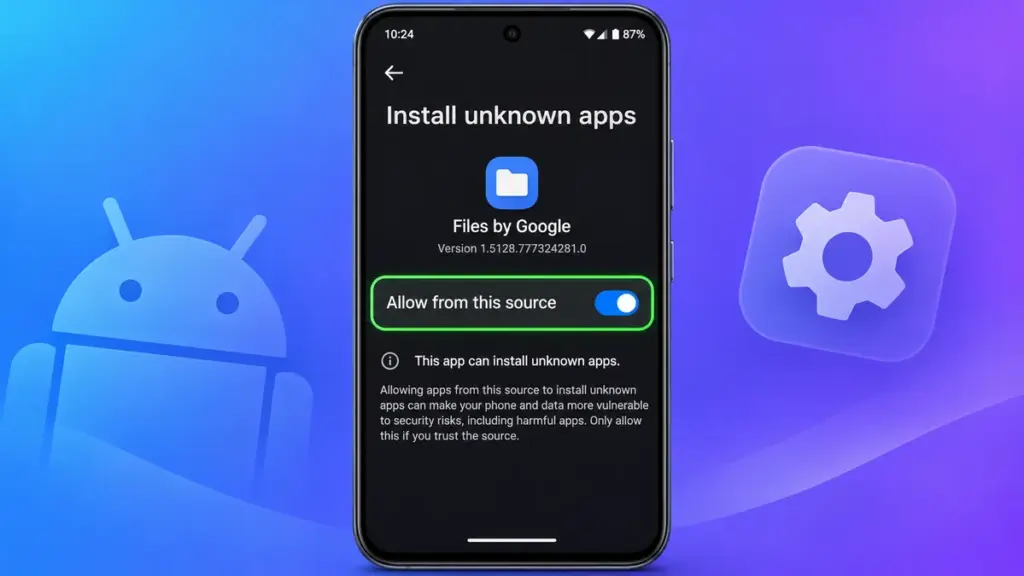
- Open Settings.
- Navigate to Apps > Special app access > Install unknown apps, where available.
- Select the browser or file manager you’re using.
- Enable Allow from this source only for a trusted APK.
- Try the installation again, then turn the permission off.
Search Settings for Install unknown apps if the menu path differs.
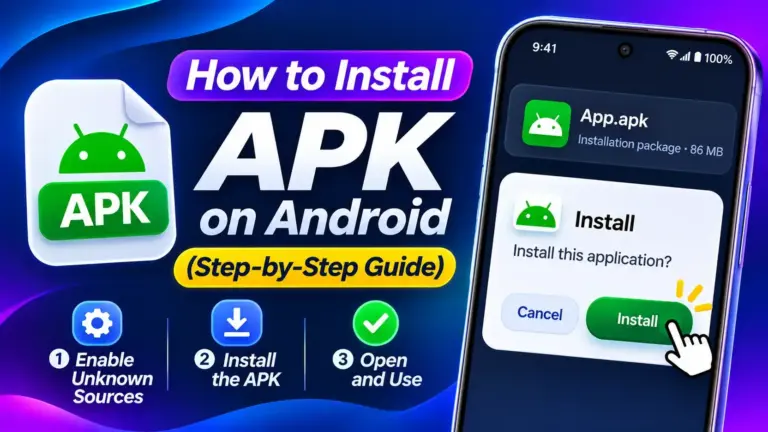
For brand-specific instructions, see our complete guide to installing an APK on Android.
Keep Google Play Protect enabled, and never ignore a malware warning just to complete an installation.
7. Clear the Package Installer Cache and Restart
If several known-good, compatible APKs fail unexpectedly, the installation service may be having a temporary problem.
Clearing its cache is a troubleshooting step, not a guaranteed fix for a damaged file.
How to try it
- Open Settings > Apps.
- Choose Show system apps if your phone offers that option.
- Find Package Installer or a similarly named installation service.
- Open Storage or Storage & cache.
- Tap Clear cache, if available.
- Restart your phone and try the trusted APK again.
Some manufacturers hide the system installer or don’t provide a cache button. If you cannot find it, skip this step and simply restart your phone.
Do not select Clear storage or Clear data as a substitute.
Brand-Specific Notes
Xiaomi, Redmi, and POCO: On supported HyperOS versions, Xiaomi documents Settings > Security & privacy > More security & privacy > Special permissions > Install unknown apps. Older MIUI versions can differ. Xiaomi may also display a separate security warning.
Samsung: Search Settings for Install unknown apps. Some Galaxy devices also have Auto Blocker, which can reject installation from unauthorised sources. That is a separate security restriction, not proof of APK corruption.
Realme: On certain Realme UI versions, the setting appears under Security and privacy > More security and privacy > Installation sources.
Vivo and Oppo: Menu locations depend on the phone and software version. Search Settings for Install unknown apps rather than following an unverified path.
What If Nothing Works?
If the same APK still fails after a clean download, check its official device requirements.
Make sure the developer supports your Android version, processor, and phone model.
If a legitimate Play Store version exists, try installing that instead. Google Play can deliver device-specific APK components without requiring you to select them manually.
You can also contact the developer with your phone model, Android version, app version, and exact error wording.
For safe download habits, visit TCL’s Android security tips.
Conclusion: Fix “There Was a Problem Parsing the Package”
The “there was a problem parsing the package” error usually points to an APK that Android cannot properly read, although compatibility and file-access problems can produce related failures.
Start with a fresh, verified download and confirm you’re opening a genuine standalone APK. Then check your Android version, processor support, and file-access permissions.
Your next step: Delete the failed APK and download a clean copy from the app’s official source before changing any security settings.
Frequently Asked Questions
1. Why does Android say “There was a problem parsing the package”?
Android cannot correctly read or accept the installation package. Possible causes include a corrupted APK, an incorrect file format, or an installation package that isn’t compatible with your device.
2. Can an outdated Android version cause a parse error?
Yes, compatibility can prevent installation. If the APK requires a newer minimum Android version, your phone cannot install it, although Android may show a different error message.
3. Can I fix a parse error without downloading the APK again?
Sometimes. If the problem involves file access or installer permissions, opening the existing APK from Downloads may work. A corrupted APK generally needs replacing.
4. Why does an APK work on another phone but not mine?
The phones might use different Android versions, processor architectures, or security settings. Check the app developer’s compatibility requirements before trying again.
5. Will clearing the Package Installer cache delete my installed apps?
No. Clear cache removes temporary cache files, not your installed applications. However, clearing the installer cache will not repair an APK that is damaged or incompatible.
6. Should I disable Google Play Protect to fix a parsing error?
No. Play Protect helps identify potentially harmful apps. If it blocks an installation, investigate the APK’s source instead of switching off security protection.