How to Check if an APK Is Safe: 7 Practical Steps
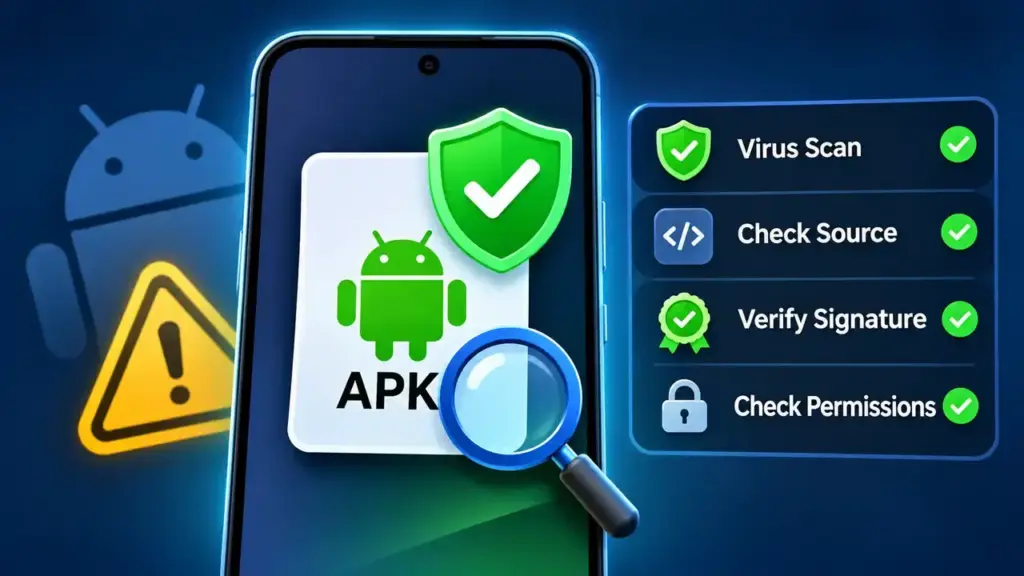
Quick answer: To learn how to check if an APK is safe, start with the download source, then compare the file with the developer’s official release. Scan the APK with VirusTotal before opening it, keep Google Play Protect enabled, and question permissions that don’t match the app’s purpose. None of these checks guarantees safety, but together they help you make a better decision.
Why checking an APK matters
An APK is a file used to install an Android app. Installing outside Google Play is called sideloading. It can be legitimate, but you must judge the source.
A malicious app might show intrusive ads, access messages or contacts, steal passwords, or misuse permissions. Our Android security tips explain other ways to protect your device.
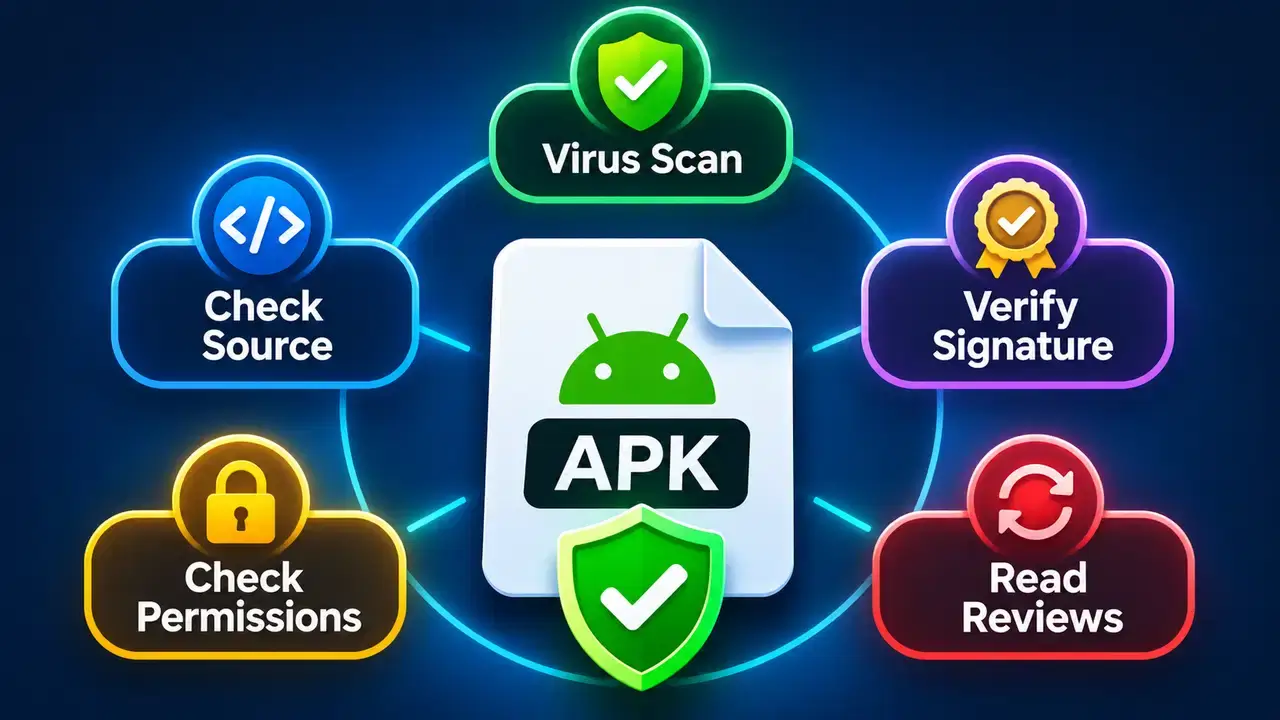
The 30-second APK safety checklist
- Source: Can you verify the developer and website?
- File: Do name, version, and size match?
- Scan: Check VirusTotal and enable Play Protect.
- Permissions: Does the app request access it genuinely needs?
- Warnings: Watch for Android alerts or strange behavior.
If you cannot establish where the file came from, don’t install it. Save this checklist for the next download.
1. Check where the APK comes from
Prefer the developer’s official website over a Telegram link, search ad, or forwarded message. Check the actual domain; fake sites can look convincing.
- Search for the app’s official developer or publisher.
- Follow the download link from that developer’s verified website or official listing.
- Look for release notes and developer contact details.
- Avoid fake Download buttons, redirects, alarmist warnings, or forced extra installs.
Explore TCL’s app listings, but verify the original developer even on third-party sites, including ours.
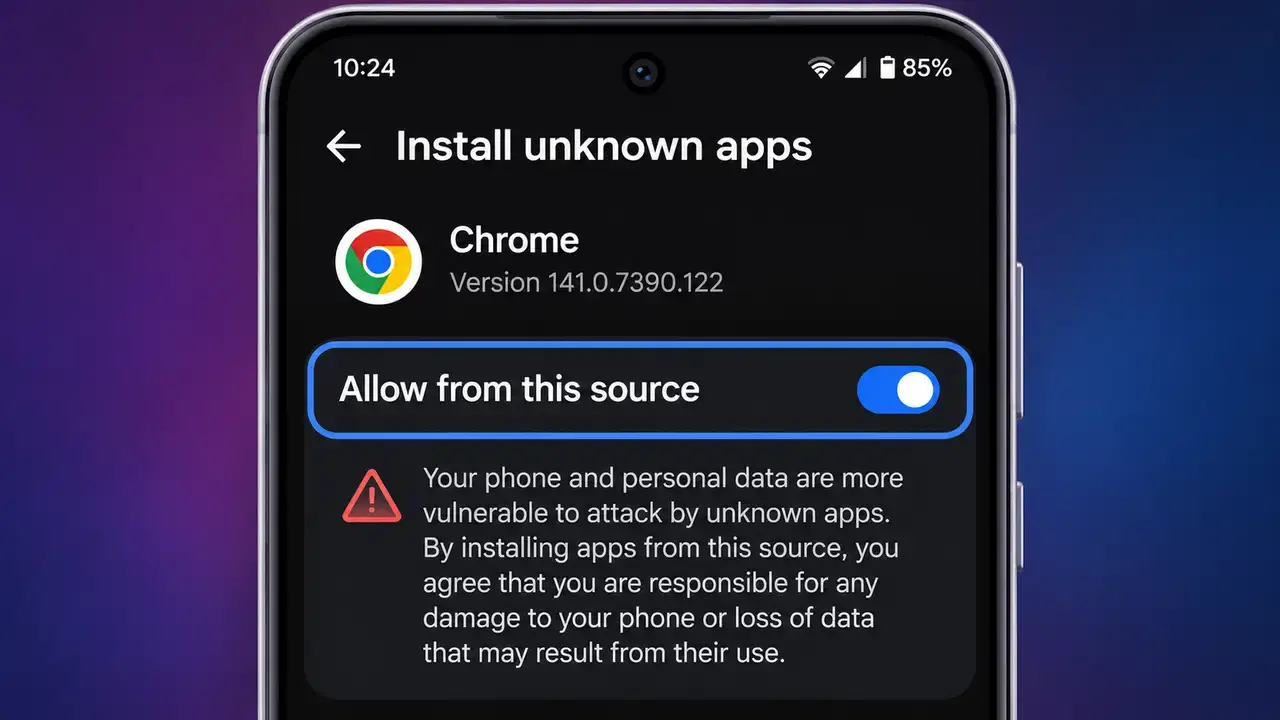
Android 8–15: Install unknown apps permission applies to each installer, such as Chrome or a file manager. For a trusted file, use Allow from this source, then switch it off afterward. Permission to install does not mean the APK is safe.
2. Compare the file name, size, and version
Anyone can rename a harmful file. Legitimate file sizes can also vary by device.
- Open Files or My Files, then find the APK in Downloads.
- Compare its file name and version with the developer’s official release notes.
- Compare the size if the developer provides it.
- Compare any published SHA-256 checksum—a digital fingerprint that identifies the exact file.
Stop to investigate unexplained differences. XAPK and split packages use different formats; see how to install XAPK files on Android.
3. Check Google Play Protect
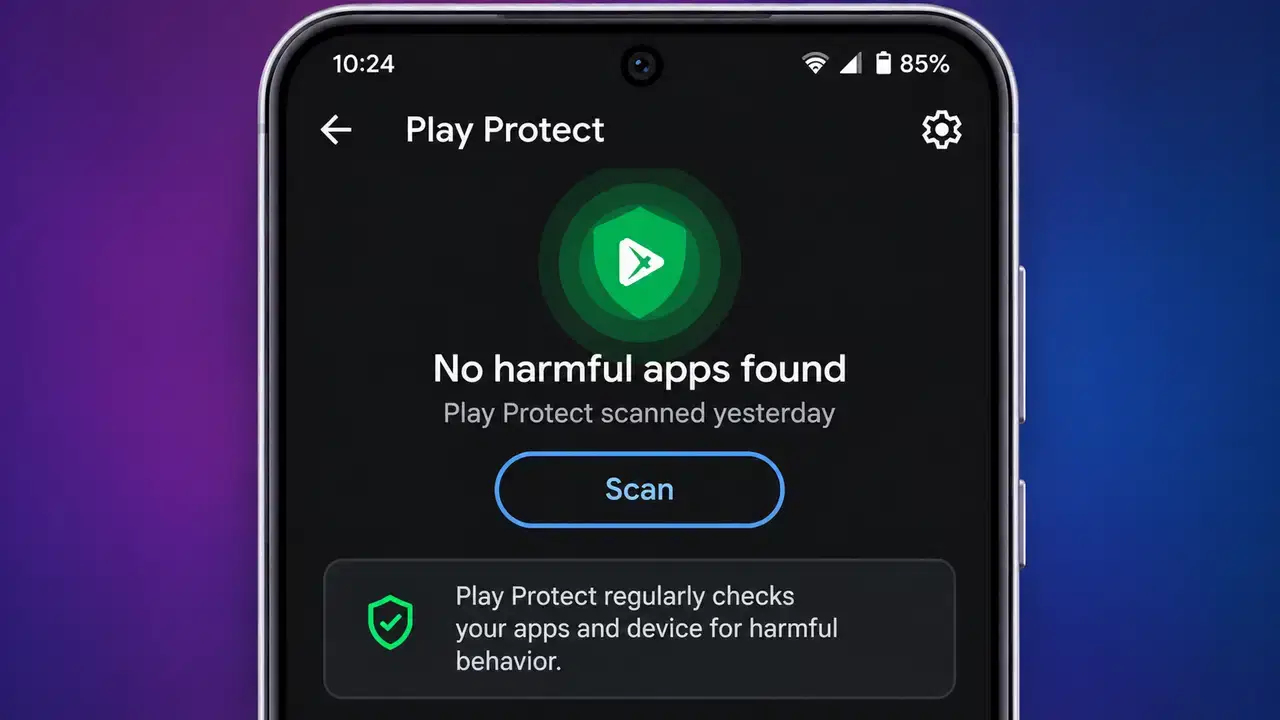
Play Protect checks apps during installation and scans installed apps, including sideloaded ones. Manual Scan examines installed apps; it cannot select an unopened APK in Downloads.
- Open the Google Play Store.
- Tap your profile picture and select Play Protect.
- Tap Scan to examine installed apps.
- Tap the settings icon and confirm Scan apps with Play Protect is switched on.
- Consider Improve harmful app detection, which sends unfamiliar app details to Google.
During sideloading, Play Protect may warn, block installation, or offer another scan. Do not disable it to bypass a warning. See Google’s Play Protect guidance.
4. Scan the APK with VirusTotal before installing
VirusTotal checks files against multiple security engines. A clean report does not prove safety.
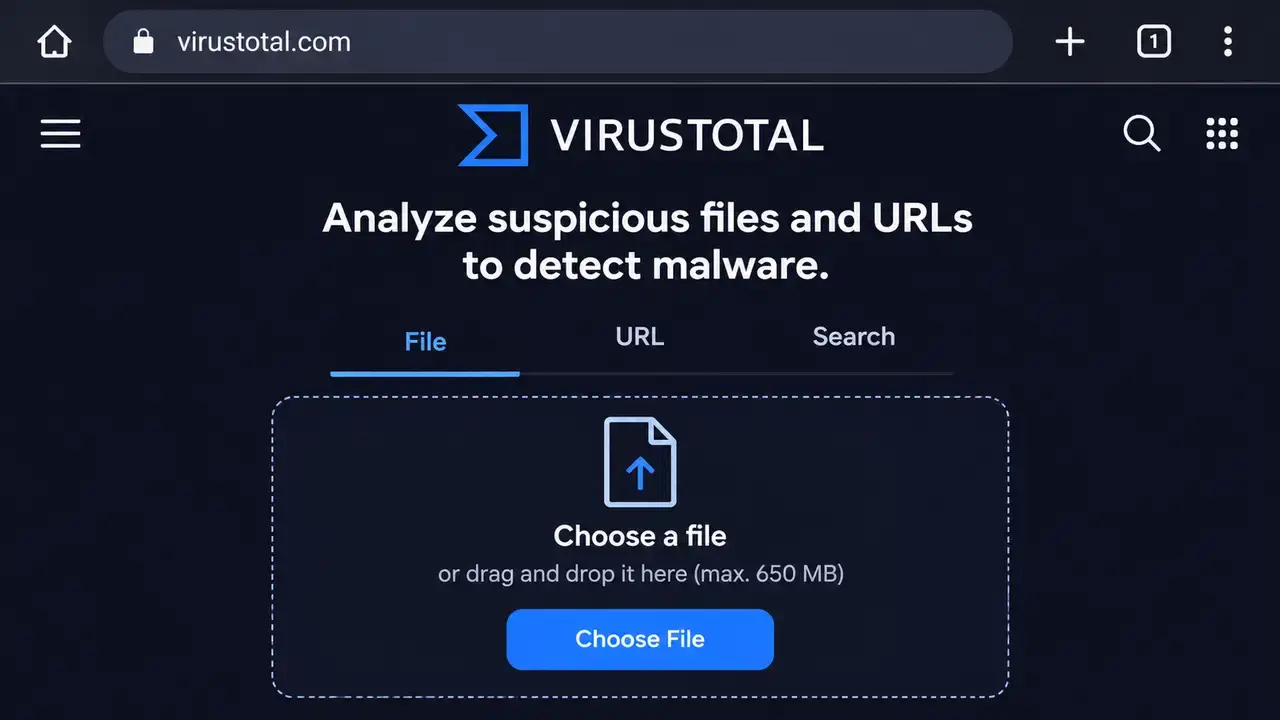
- On your phone or PC, visit VirusTotal and open the File upload option.
- Select the APK you downloaded, then submit it for analysis.
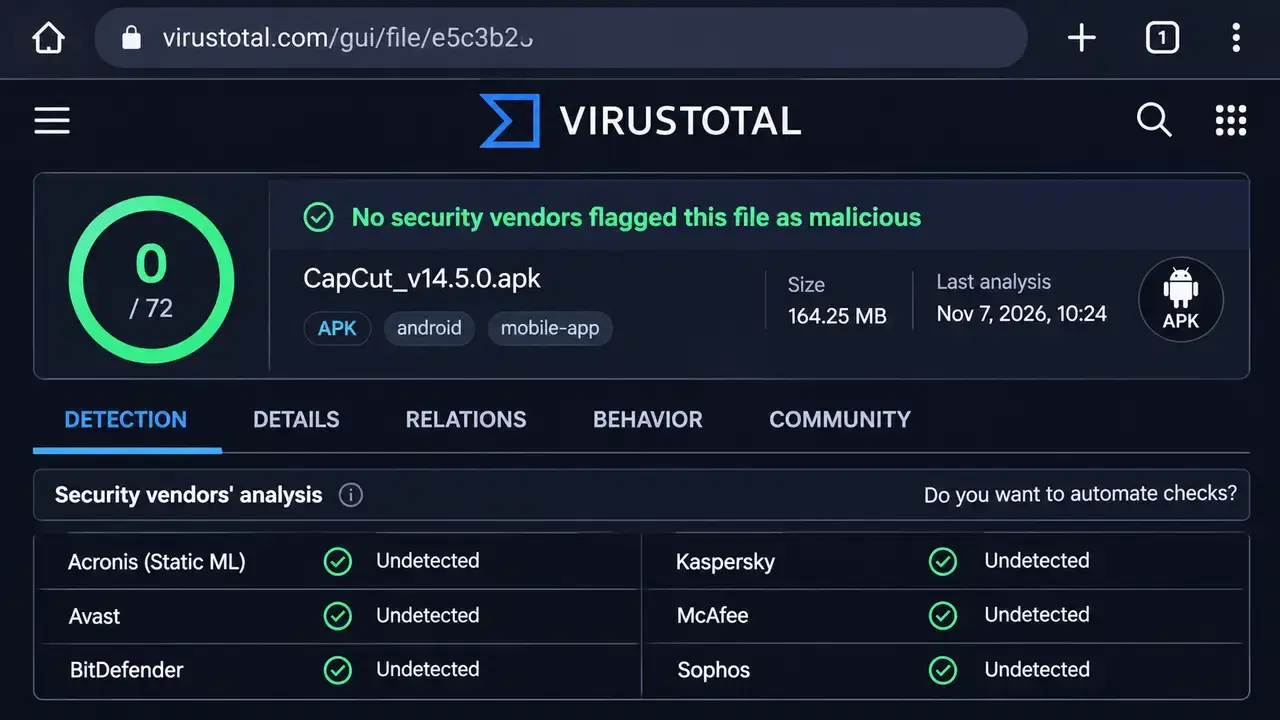
- When the report appears, open the Detection results and review which engines raised alerts.
- Check detection names and scan date, not just the score.
- Alternatively, search the file’s SHA-256 hash for an existing report without uploading it.
How should you read the result?
Zero detections is not a safety guarantee. One or two detections may be false positives, but don’t dismiss them automatically. Multiple independent engines giving similar malware labels are stronger grounds to avoid the file.
Privacy: Standard submissions may be shared with security partners and customers. Never upload confidential files. Searching a hash avoids uploading the APK but requires an existing report.
5. Check app permissions carefully
On Android 8–15, modern apps usually ask for sensitive permissions, such as camera or location, when you use a feature, not at installation. Special access works differently.
- Before installing, read the developer’s feature and permission explanations.
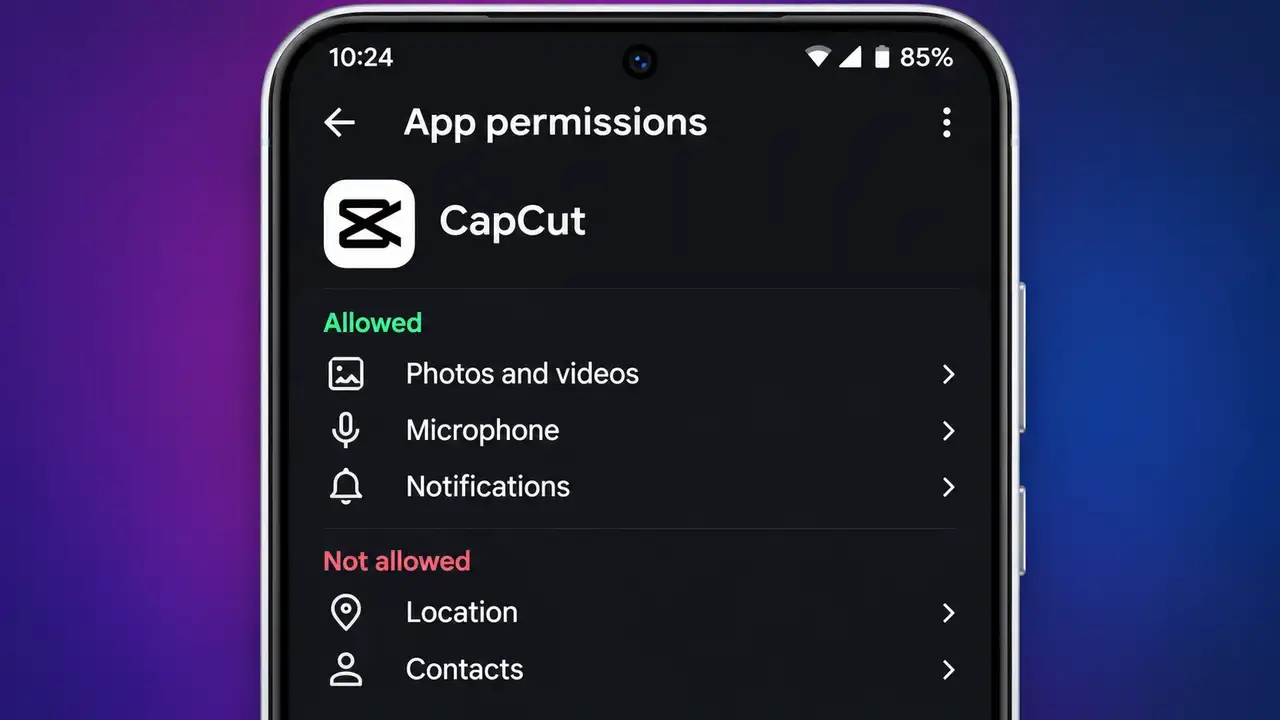
- After installation, go to Settings → Apps → [app name] → Permissions.
- Choose Don’t allow, Ask every time, or Allow only while using the app as appropriate.
- Check special access like Accessibility, Display over other apps, and notification access separately. Menus vary.
| App type | Permission that may make sense | Permission worth questioning |
|---|---|---|
| Camera app | Camera, microphone for video | SMS or call logs |
| Maps app | Location | Accessibility control |
| Wallpaper app | Photos selected by you | Contacts or SMS |
| Calculator | Usually no sensitive access | Microphone or location |
| Messaging app | Contacts, camera with relevant features | Unexplained accessibility access |
| PDF reader | Selected documents or files | Call logs or SMS |
A permission alone does not prove malware. But unrelated requests for Accessibility, notification access, or control over other apps deserve scrutiny.
6. Check the developer signature
Android apps are digitally signed. An update normally needs the existing app’s signing certificate or a valid signing-key rotation.
- Check that an alleged update comes from the real developer.
- If installation reports App not installed, App not installed as package conflicts with an existing package, or a similar conflict, stop instead of immediately uninstalling the original.
- Look for an official explanation of any signing-key change.
- If unsure, keep the installed app and delete the download.
A mismatch can signal modification, but version or package problems also cause conflicts. A valid signature alone does not prove safety. See [LINK: Fix “App not installed” error guide].
Optional advanced check: On a PC, Android SDK’s apksigner verify --print-certs app.apk displays certificate details. Compare them against a trusted original.
7. Watch for warning signs after installing
Some problems appear only after installation; one symptom alone is not proof.
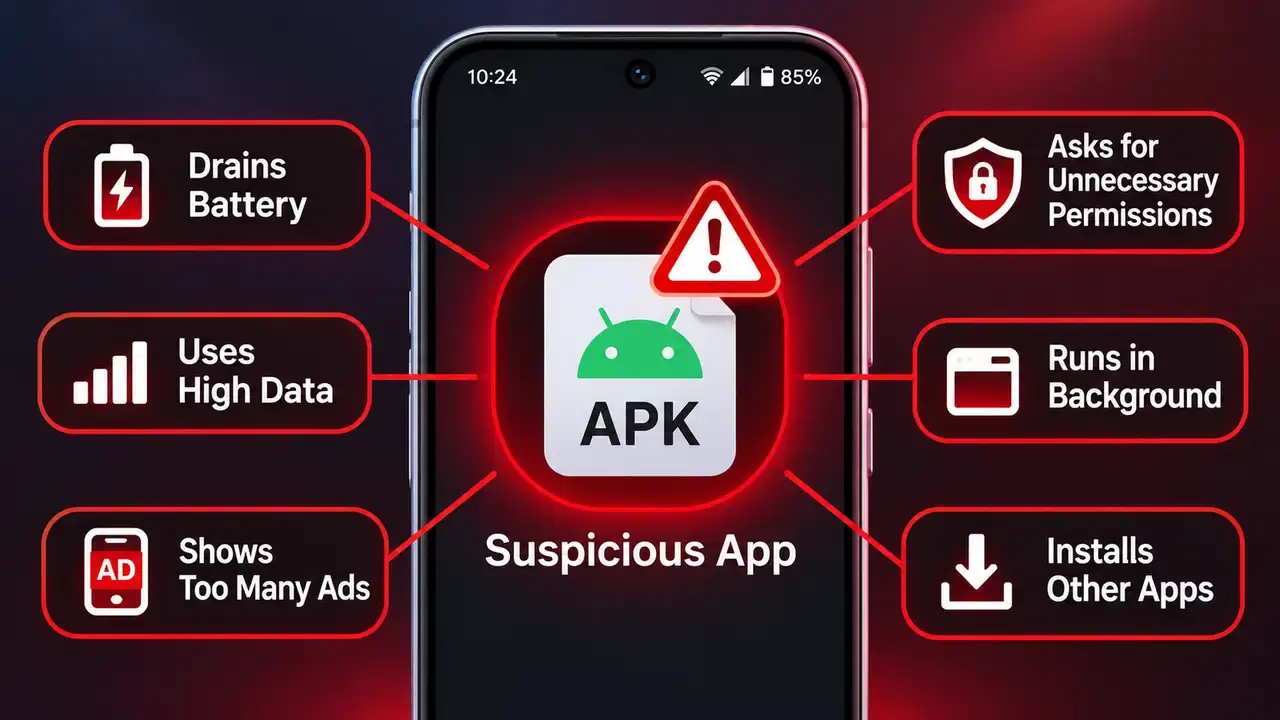
- Watch for ads appearing outside the app, unexplained browser redirects, or apps you didn’t install.
- Check Settings → Battery and your phone’s mobile-data usage for unusual activity linked to the app.
- Review permissions and special access after unexpected prompts.
- If the app sends unexpected login messages, demands payment to unlock your phone, or asks you to disable security checks, stop using it.
What if you already installed a suspicious APK?
Stop opening the app or entering passwords.
- In Settings → Apps, select the app and tap Uninstall. If blocked, review its device-admin or special access.
- Open Play Store → profile picture → Play Protect → Scan.
- On a trusted device, change passwords potentially exposed, starting with email, banking, and payment accounts.
- Review logins and transactions, remove unknown sessions, enable two-step verification, and contact your bank if payments are at risk.
- Update Android. If trouble continues, back up personal files and consider a factory reset, reinstalling only trusted apps.
Don’t reinstall the suspect APK. For a verified replacement, see [LINK: How to install an APK on Android guide].
Why modified or cracked APKs are riskier
A mod, cracked, or premium unlocked APK has been changed from the original. You may not know which code was added, and the signature or update path may differ.
Not every mod contains malware, but trusting an unknown modifier adds risk. Prefer official free versions, trials, or open-source alternatives.
Conclusion: how to check if an APK is safe
Start with the source, confirm the release details, review a VirusTotal report, and leave Play Protect enabled. Question unexpected permissions and never override a serious security warning merely to finish installing. These checks reduce risk; they cannot make every APK safe. Your next step: Before opening your latest APK download, run through the 30-second checklist above.
Frequently asked questions
Is this APK safe if VirusTotal shows zero detections?
Not necessarily. Zero detections means the checked engines did not identify it as harmful at the time of analysis. Confirm the source and permissions too.
Can I scan an APK for a virus without installing it?
Yes. Upload the APK to VirusTotal, or search its SHA-256 hash if someone has already submitted that exact file. Avoid uploading confidential files.
Does Google Play Protect scan APKs outside the Play Store?
Yes, it checks sideloaded apps during installation and scans installed apps. The manual Scan button does not directly scan an uninstalled APK in Downloads.
Does allowing unknown apps mean my phone is unsafe?
Not automatically. On Android 8 and later, the setting grants an individual source permission to initiate installs; it does not approve every APK as trustworthy.
Are one or two VirusTotal detections always malware?
No. False positives happen, but a small number of alerts can also be real. Investigate the labels, file origin, and whether the developer confirms the exact release.
Why does an APK say “App not installed”?
Possible reasons include a signing-certificate mismatch, incompatible Android version, or conflicting package. Don’t uninstall the existing app just to bypass an unexplained error.