Best Video Editing Apps for Android
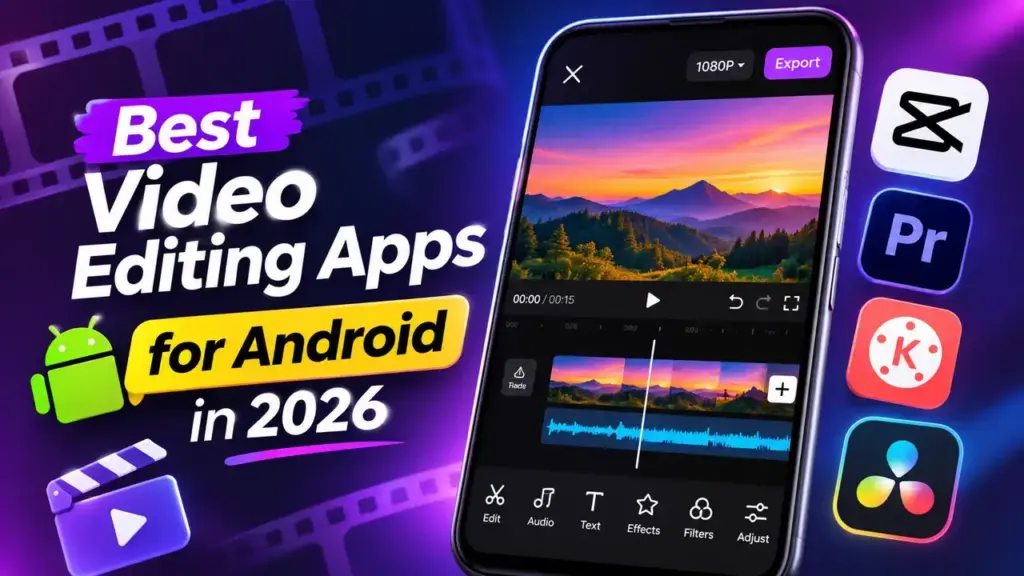
Quick answer: Among the best video editing apps for Android in 2026, InShot is our overall pick for everyday editing. VN Video Editor is the strongest free option without a watermark, while YouCut is particularly approachable for beginners. For more advanced editing, KineMaster offers layers, keyframes, and precise timeline controls. Instagram creators should also consider Edits, which offers free 4K exports without a watermark.
Whether you’re making Instagram Reels, YouTube Shorts, WhatsApp status videos, or longer YouTube uploads, the right editor depends on your workflow.
You don’t necessarily need a subscription or an expensive phone. Several free editors provide trimming, audio, captions, and excellent export options.
You can also browse video players and editors on TCL to explore more Android applications.
How we picked these apps
This guide compares nine Android editors using seven criteria:
- Ease of use: Can beginners find the tools they need?
- Free features: What can you actually create without paying?
- Watermarks: Does the free export add branding?
- Export quality: Can the app save 1080p or 4K video?
- Performance: How demanding is the workflow likely to be on mid-range hardware?
- Creative tools: Are captions, templates, transitions, and layers available?
- Pricing: Do paid features justify the cost?
We checked official Google Play listings for India, Apple App Store listings, and developer documentation on November 11, 2026. Performance and export limits still need device-level verification.
Best video editing apps for Android: Quick comparison
| App | Best for | Free version | Watermark (free) | Max export | Price (INR) | Play rating |
|---|---|---|---|---|---|---|
| InShot | Overall editing | Yes | Yes; removable | 4K | ₹399/month; ₹1,499/year; ₹3,999 lifetime* | 4.7 |
| VN | Free advanced editing | Yes | No | 4K/60fps | ₹399–₹1,799* | 4.6 |
| YouCut | Beginners | Yes | No | 4K | ₹190–₹4,300 (in-app purchase range) | 4.7 |
| Edits | Instagram Reels | Yes | No | 4K | Free | 4.7 |
| KineMaster | Advanced timelines | Yes | Yes | 4K/60fps | ₹9–₹4,150 (in-app purchase range) | 4.3 |
| PowerDirector | AI-assisted editing | Yes | Yes | 4K | Paid plans; Android price varies | 4.4 |
| Filmora | Effects and AI tools | Yes | Yes | 4K (Premium) | ₹24.55–₹12,500 (in-app purchase range) | 4.2 |
| VITA | Templates and status videos | Yes | Yes | 1080p | Free | 4.3 |
| Canva | Branded social videos | Yes | No with free assets | 1080p mobile | ₹4,000/year (Pro) | 4.5 |
Ratings are from the Google Play listings reviewed, and may differ by country or language setting. Max export means the advertised or documented maximum, not necessarily the free-tier limit or what every device supports. Prices are India-specific where verified; Android checkout prices remain marked for confirmation.
1. InShot — Best overall for everyday editing
Developer: InShot Video Editor
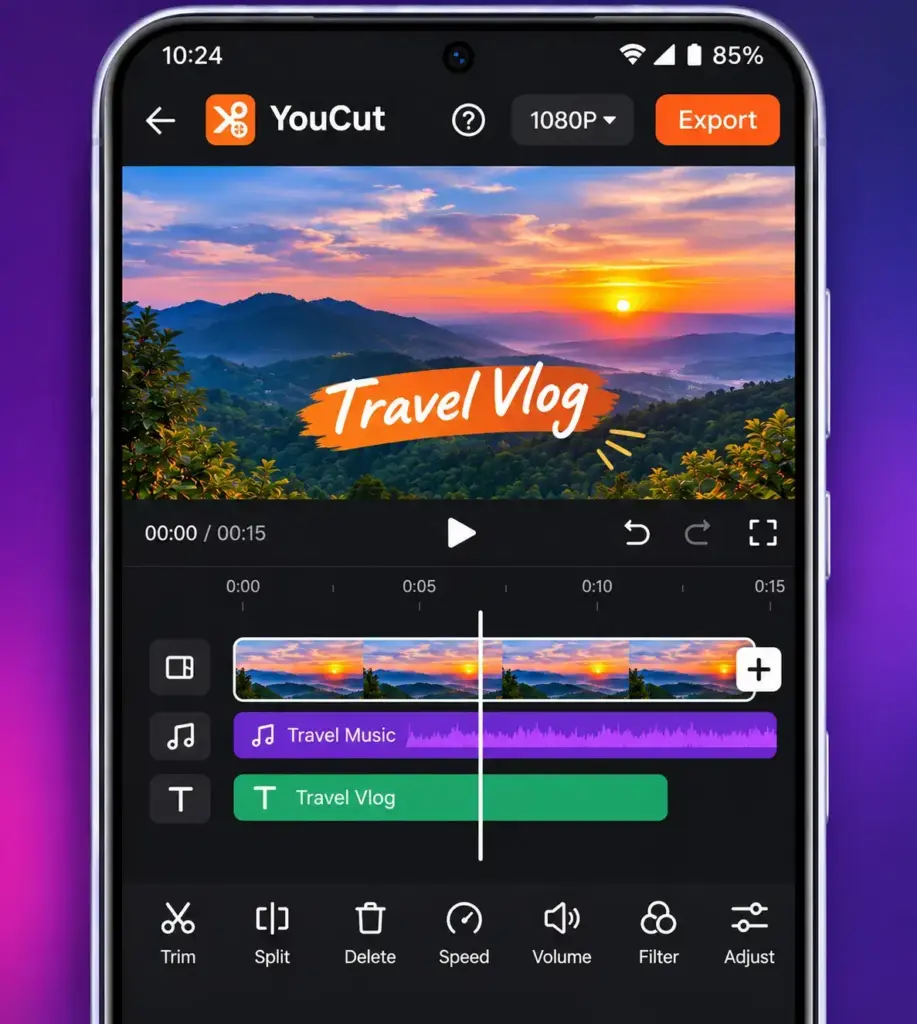
InShot is a versatile choice for creating Reels, travel clips, WhatsApp status videos, and casual YouTube uploads. Its editing tools cover the essentials without requiring you to understand a complicated professional timeline.
You can cut videos, add music, create captions, adjust speed, and export up to 4K. The main drawback is that the free version can add a watermark, although some builds offer ad-supported removal.
Key features
- Trim, split, merge, crop, and rotate clips.
- Add music, voiceovers, text, and stickers.
- Use automatic captions and AI effects.
- Create picture-in-picture videos and transitions.
- Export in different aspect ratios up to 4K.
Pros
- Accessible editing interface.
- Useful tools for both short and longer videos.
- Broad range of effects and audio controls.
Cons
- Free exports can include a watermark.
- Ads and premium-locked materials may interrupt editing.
Pricing: Free with ads and optional Pro purchases.
Best for: People who want one editor for most everyday video projects.
Download on Google Play: https://play.google.com/store/apps/details?gl=IN&hl=en&id=com.camerasideas.instashot
Download on App Store: https://apps.apple.com/in/app/inshot-ai-video-editor/id997362197
2. VN Video Editor — Best free editor without a watermark
Developer: Ubiquiti Labs, LLC
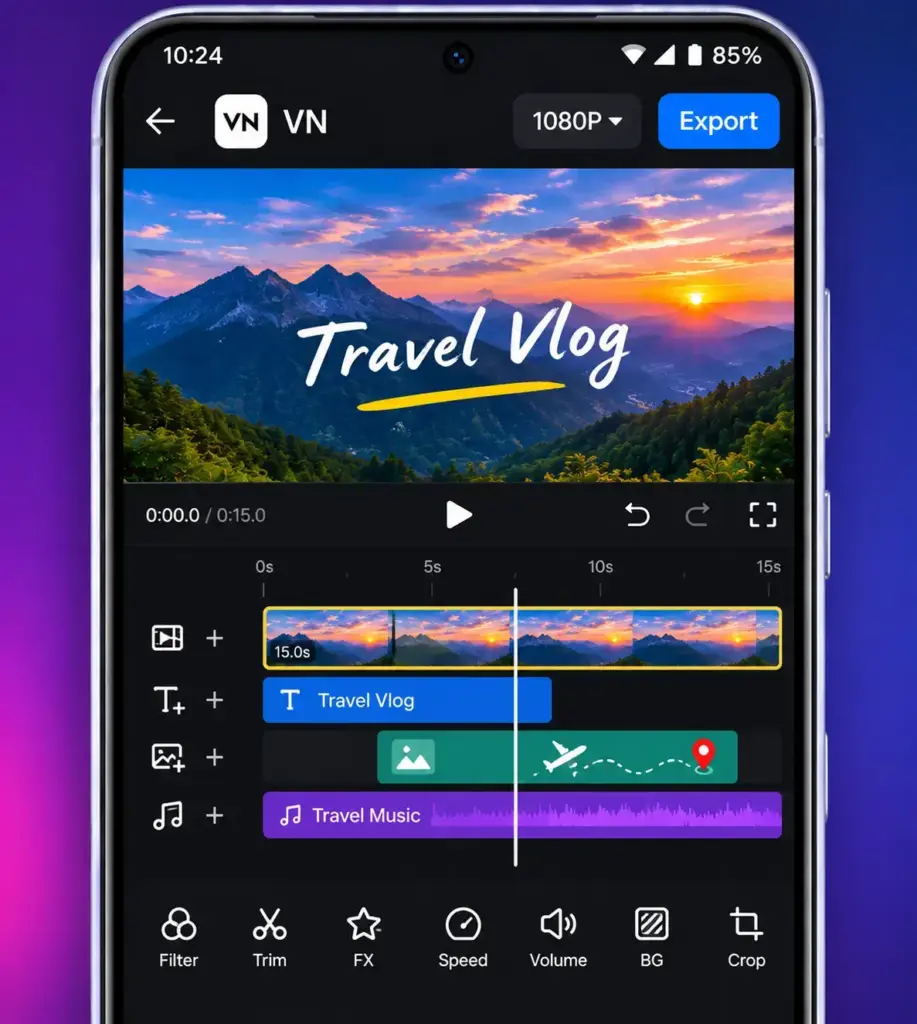
VN is our first recommendation for someone who wants advanced editing without immediately buying a subscription. It offers a multi-track timeline, allowing video, music, titles, and overlays to be arranged separately.
The official listings advertise watermark-free editing and exports up to 4K at 60fps. VN is more flexible than a basic trimmer, although mastering layers and keyframes takes practice.
Key features
- Multi-track video and audio timeline.
- Keyframe animation for moving elements.
- Speed curves, filters, and LUT support.
- Automatic captions and voice generation.
- Custom exports up to 4K at 60fps.
Pros
- No watermark on standard free exports.
- Strong timeline controls without an immediate paywall.
- Useful for both horizontal and vertical content.
Cons
- More controls to learn than simpler editors.
- Some AI features, credits, and assets may require payment.
Pricing: Free core editor with ads and optional purchases.
Best for: Creators looking for a free video editor for Android with multi-layer editing and clean exports.
Download on Google Play: https://play.google.com/store/apps/details?gl=IN&hl=en-GB&id=com.frontrow.vlog
Download on App Store: https://apps.apple.com/in/app/vn-photo-video-editor/id1343581380
3. YouCut — Best for beginners and quick edits
Developer: InShot Video Editor
YouCut focuses on straightforward editing: trim a recording, combine clips, add music, and save the result. That makes it particularly useful for family videos, status updates, and first-time creators.
Its biggest advantage is a free version advertised without an export watermark. YouCut also supports resolutions up to 4K, although available settings can depend on the device and features used.
Key features
- Cut, split, merge, and crop clips.
- Add music and extract audio from videos.
- Adjust speed, colour, and aspect ratio.
- Create photo slideshows and status videos.
- Use captions, filters, and optional AI tools.
Pros
- Easy entry point for new editors.
- Watermark-free standard exports.
- Practical trimming and conversion tools.
Cons
- Advanced creative workflows are less central to the interface.
- Some effects and AI tools require purchases.
Pricing: Free with optional Pro purchases.
Best for: Beginners who want a video editing app without watermark requirements or complicated setup.
Download on Google Play: https://play.google.com/store/apps/details?gl=IN&id=com.camerasideas.trimmer
Download on App Store: https://apps.apple.com/in/app/youcut-video-editor/id1620499741
4. Edits — Best for Instagram Reels
Developer: Instagram
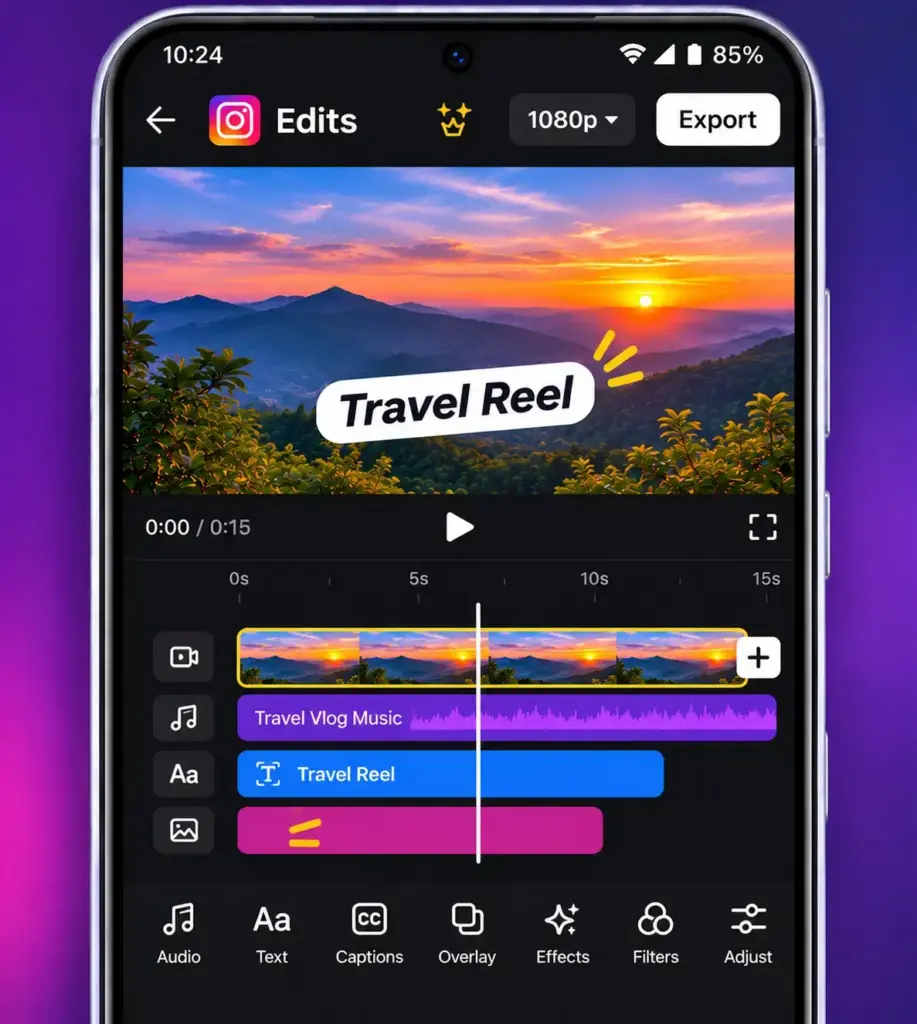
Edits is Instagram’s dedicated video creation application. It combines recording, editing, automatic captions, and Reel-related creative tools in one place.
The app advertises free 4K exports without a watermark, including when saving a video for another platform. Its closer connection with Instagram is useful for Reel creators but less important if you mainly edit long YouTube videos.
Key features
- Frame-accurate clip editing.
- Automatic captions and voice enhancement.
- Green-screen effects, overlays, and cutouts.
- Video recording with adjustable camera controls.
- Reel inspiration, draft management, and insights.
Pros
- Free watermark-free 4K exports.
- Direct integration with Instagram.
- Useful caption and audio tools.
Cons
- Instagram account integration is central to the experience.
- Less focused on complex long-form production than dedicated professional editors.
Pricing: Core editing is free. Google Play also lists in-app purchases.
Best for: Instagram creators who want an efficient Reels-focused workflow.
Download on Google Play: https://play.google.com/store/apps/details?id=com.instagram.basel
Download on App Store: https://apps.apple.com/in/app/edits-video-editor/id6738967378?at=1000l6eA
5. KineMaster — Best for advanced mobile editing
Developer: KineMaster, Video Editor Experts Group
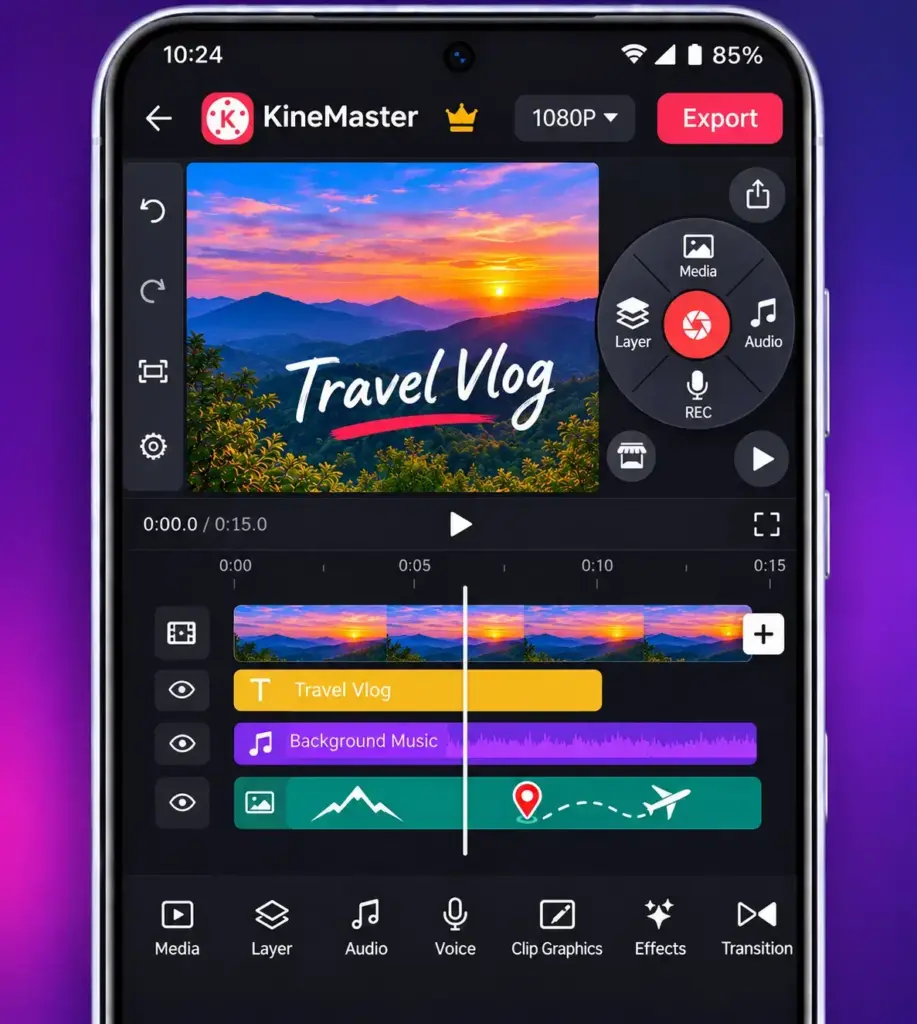
KineMaster is suited to creators who want greater control over their timeline. It supports multiple visual layers, keyframes, chroma key, audio adjustments, and detailed editing tools.
Its documented maximum is 4K at 60fps, subject to device capability. Unlike VN, removing KineMaster’s watermark requires a Premium subscription.
Key features
- Multiple video, image, and audio layers.
- Keyframe animation and chroma key.
- Audio mixing and voice tools.
- AI captions, tracking, and background removal.
- Custom export bitrate and resolution settings.
Pros
- Precise control over layered projects.
- Strong creative and animation features.
- Optimised interfaces for larger screens.
Cons
- Premium is required to remove the watermark.
- Complex projects demand more processing power and practice.
Pricing: Free editing with optional Premium subscription. The India iPhone listing shows Premium at ₹599/month
Best for: Semi-pro creators making layered tutorials, explainers, music videos, or detailed edits.
Download on Google Play: https://play.google.com/store/apps/details?gl=IN&id=com.nexstreaming.app.kinemasterfree
Download on App Store: https://apps.apple.com/in/app/kinemaster-ai-video-editor/id1609369954
6. PowerDirector — Best for AI-assisted timeline editing
Developer: Cyberlink Corp
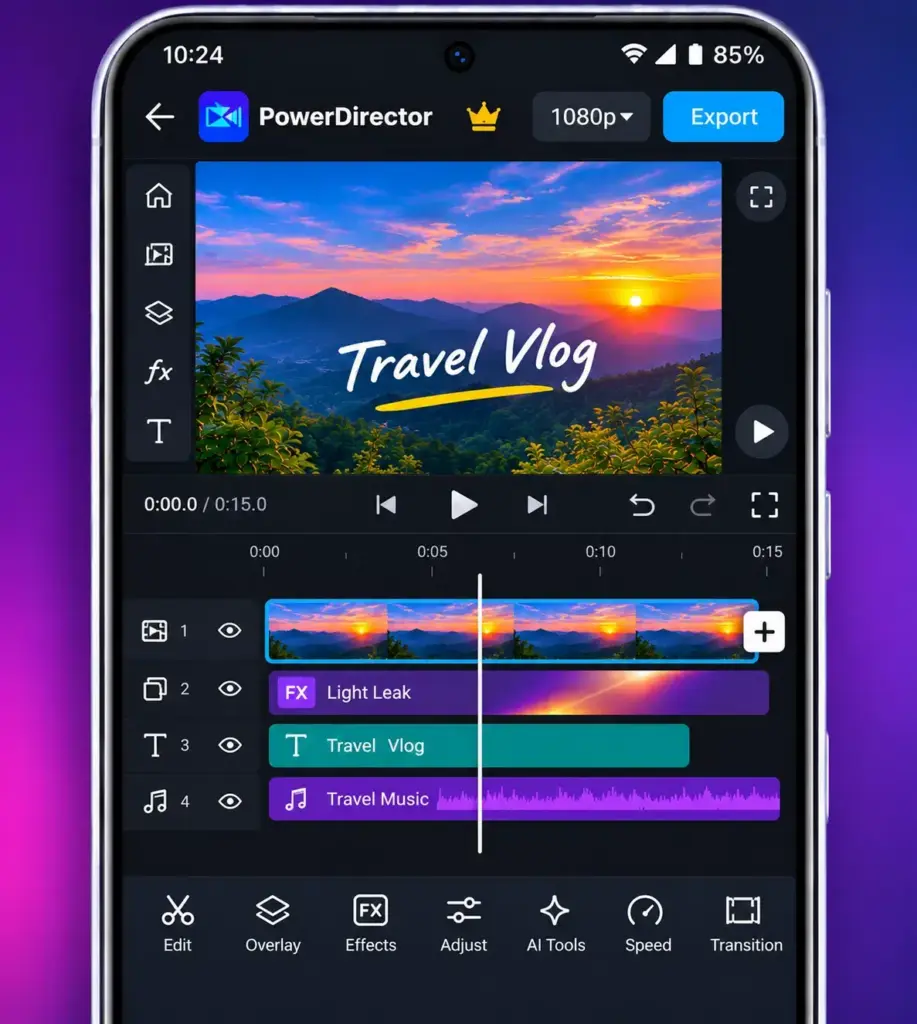
PowerDirector combines a conventional video timeline with AI-assisted tools for effects, speech, and backgrounds. It makes sense for creators who need more editing control than a template-led app provides.
The Android listing advertises 4K export, but hardware compatibility and premium restrictions matter. Verify free export branding before choosing it for watermark-free work.
Key features
- Multi-track video editing.
- Trim, crop, split, and speed adjustments.
- Voice enhancement and background removal.
- Animated titles, transitions, and filters.
- Export options up to 4K on supported devices.
Pros
- Combines conventional editing and AI features.
- Useful audio and visual adjustment tools.
- Supports higher-resolution projects.
Cons
- Some important tools and assets require payment.
- AI features can introduce additional costs or processing demands.
Pricing: Free with optional subscriptions.
Best for: Creators interested in timeline editing with optional AI assistance.
Download on Google Play: https://play.google.com/store/apps/details/?hl=en-IN&id=com.cyberlink.powerdirector.DRA140225_01
7. Filmora — Best for effects and AI-powered creativity
Developer: Wondershare Filmora
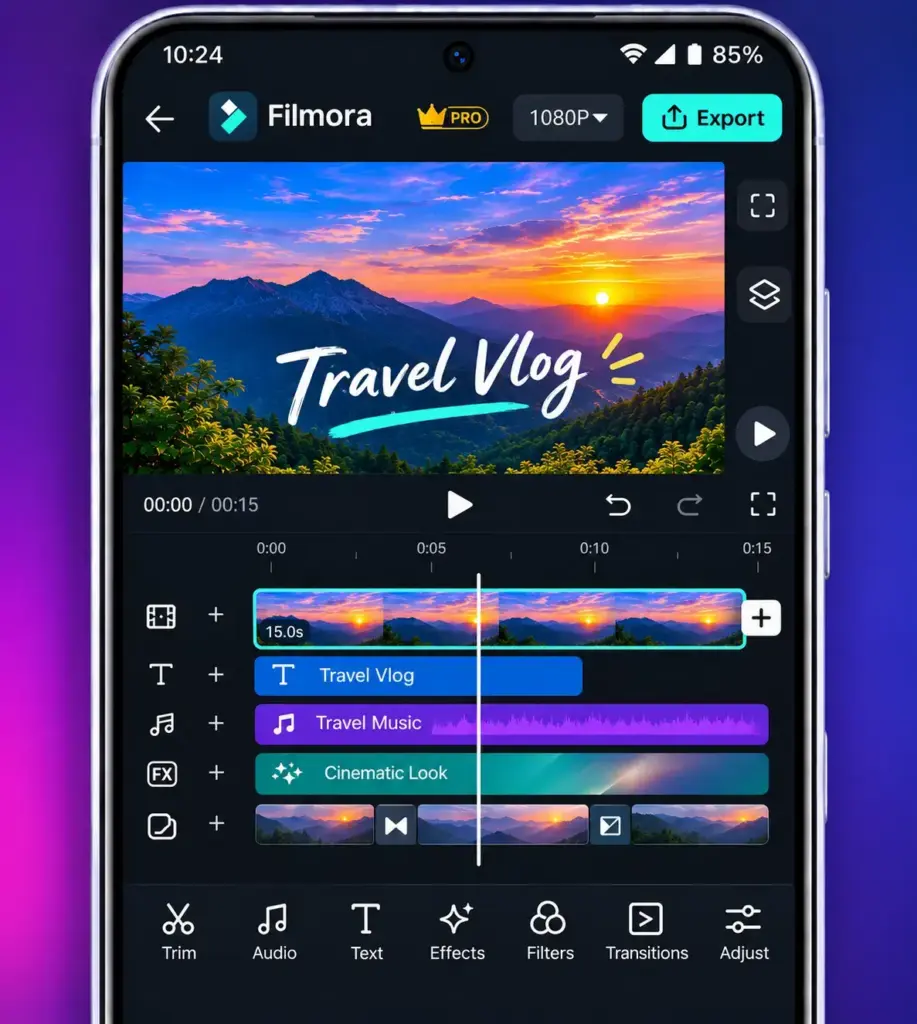
Filmora focuses on creative tools, effects, templates, and AI features. It is a practical option for creators who enjoy experimenting with captions, transitions, voiceovers, and generated content.
Its free version is suitable for exploring the editor, but exported videos carry a watermark. Wondershare also identifies 4K export as a Premium feature, which is important when comparing subscription plans.
Key features
- Trim, split, reverse, and combine footage.
- Animated text, transitions, and filters.
- Picture-in-picture and green-screen editing.
- Automatic captions and text-to-speech.
- AI generation and removal tools.
Pros
- Extensive creative effects.
- Accessible options for social video production.
- AI tools can simplify selected tasks.
Cons
- Free exported videos have a watermark.
- AI credits and separate paid tiers can make costs confusing.
Pricing: Free trial/editor with optional subscriptions and AI purchases.
Best for: Creators prioritising effects, templates, and AI-assisted content.
Download on Google Play: https://play.google.com/store/apps/details?gl=IN&id=com.wondershare.filmorago
Download on App Store: https://apps.apple.com/in/app/filmora-ai-video-editor-maker/id1019382747
8. VITA — Best for templates and WhatsApp status videos
Developer: SNOW Corporation
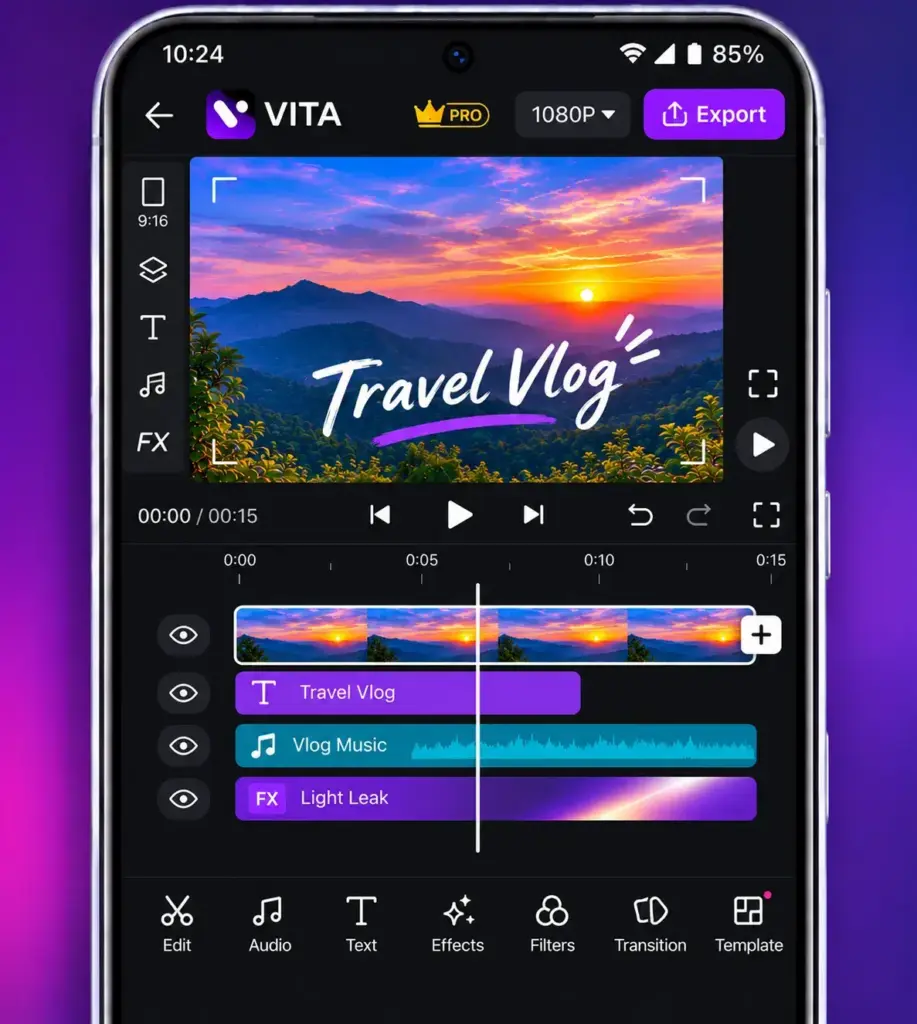
VITA offers a simpler creative workflow built around filters, animations, music, and ready-made video templates. It is worth exploring for short personal videos, aesthetic edits, and photo-based status updates.
The developer advertises Full HD export rather than 4K. That is sufficient for many social videos, although export stability and watermark behaviour should be checked on your device.
Key features
- Ready-made editing templates.
- Video transitions and speed adjustment.
- Filters, glitter, and glitch effects.
- Animated text and music.
- Picture-in-picture and collage tools.
Pros
- Straightforward template-based workflow.
- Good creative options for short clips.
- Free app listed without a subscription requirement.
Cons
- Maximum advertised export is Full HD.
- Less suited to detailed professional timeline work.
Pricing: Free, with no subscription listed on the checked store pages.
Best for: Casual creators making status videos, photo montages, or aesthetic short edits.
Download on Google Play: https://play.google.com/store/apps/details?gl=IN&id=com.snowcorp.vita
Download on App Store: https://apps.apple.com/in/app/vita-video-editor-maker/id1488430631
9. Canva — Best for branded videos and templates
Developer: Canva
Canva is more of a complete design platform than a traditional video editor. Its strength is combining clips, captions, graphics, and templates into consistent-looking social content.
It works especially well for businesses, educators, and creators who need thumbnails, posters, and videos with a shared visual style. Free video exports are watermark-free when you use free assets.
Key features
- Templates for Reels, Shorts, and social posts.
- Drag-and-drop video timeline.
- Animated graphics, text, and transitions.
- Captions, stock media, and music.
- Cloud-based projects across devices.
Pros
- Excellent for branded and graphic-heavy content.
- Free exports without watermarks when using free assets.
- Works across mobile and desktop.
Cons
- Less specialised for precision-heavy video editing.
- Premium assets can introduce watermarks or payment prompts.
Pricing: Canva Free is ₹0. The official India website lists Canva Pro at ₹4,000/year.
Export: Canva documents 1080p as the standard free MP4 output and 4K as a desktop export option; don’t assume 4K is available inside the Android app.
Best for: Social-media managers, educators, businesses, and creators who combine design and video.
Download on Google Play: https://play.google.com/store/apps/details?gl=IN&hl=en-IN&id=com.canva.editor
Download on App Store: https://apps.apple.com/in/app/canva-ai-video-photo-editor/id897446215
How to choose the right video editor
The best video editor for Reels and Shorts is not necessarily the best one for long YouTube videos.
- Instagram Reels: Start with Edits for Instagram-focused creation, or InShot for general short-form editing.
- YouTube Shorts: Try VN when you need layers, captions, music, and watermark-free exports.
- YouTube videos: Consider KineMaster or PowerDirector for more detailed timeline work.
- No watermark: VN, YouCut, and Edits are strong free choices. Canva also exports cleanly with free assets.
- Older or budget phones: Begin with short 1080p projects in YouCut or VITA. Test performance before committing to complicated edits.
- Advanced editing: Choose KineMaster for keyframes and layered compositions, or VN for a free-first alternative.
- Branded content: Canva makes it easier to maintain consistent fonts, colours, and graphics.
For smoother results on a mid-range phone, work with 1080p source clips when possible, close unnecessary background apps, and keep enough free storage for exports.
Before subscribing, edit the same short video in two applications. Compare editing effort, export quality, watermarks, and how the final file looks in your gallery.
Why CapCut isn’t on this list
CapCut has been unavailable through India’s official app stores following the restrictions affecting Chinese-linked apps in 2020. It was not named in the government’s original June 29 list of 59 apps, so that specific date should not be presented as its confirmed ban date.
For the background, read Is CapCut banned in India?
Avoid unfamiliar APK download sites promising unrestricted or premium-unlocked versions. Our Android security tips explain how to approach third-party downloads safely. If you need to sideload a legitimate app, consult How to install an APK on Android guide
Conclusion: Which Android video editor should you install?
For most users comparing the best video editing apps for Android, InShot offers a balanced starting point. Choose VN for free watermark-free editing, YouCut for simpler tasks, or KineMaster for advanced timeline work. Edits deserves a place on the shortlist if Instagram Reels are your main focus.
Start by editing one 30-second video in VN and InShot. Compare the results before committing to a paid subscription.
Frequently asked questions
What is the best free video editing app for Android without a watermark?
VN and YouCut are both good choices. VN offers more advanced timeline tools, while YouCut focuses on straightforward editing. Instagram Edits also supports watermark-free 4K exports.
Which Android video editor is best for Instagram Reels?
Edits is designed around Instagram’s workflow. InShot is another option if you want an editor that works comfortably for Reels, WhatsApp status videos, and YouTube Shorts.
Can I edit 4K videos on an Android phone?
Yes, supported apps include VN, InShot, KineMaster, and PowerDirector. Actual export options depend on your device, subscription, and the application’s settings.
Which video editing app works best on a low-end Android phone?
Start with YouCut for simple trims and short videos. VITA is another option for template-based work. Actual performance depends on RAM, chipset, video resolution, and project complexity.
Is KineMaster completely free?
No. KineMaster provides free editing tools, but Premium is required to remove the watermark and access certain paid features. Its advertised export resolution is not restricted solely to subscribers.
Is Canva good enough for editing YouTube videos?
Canva works well for simple videos with text, graphics, and templates. For lengthy edits involving complex transitions, precise timing, and multiple tracks, VN or KineMaster is usually a better fit.